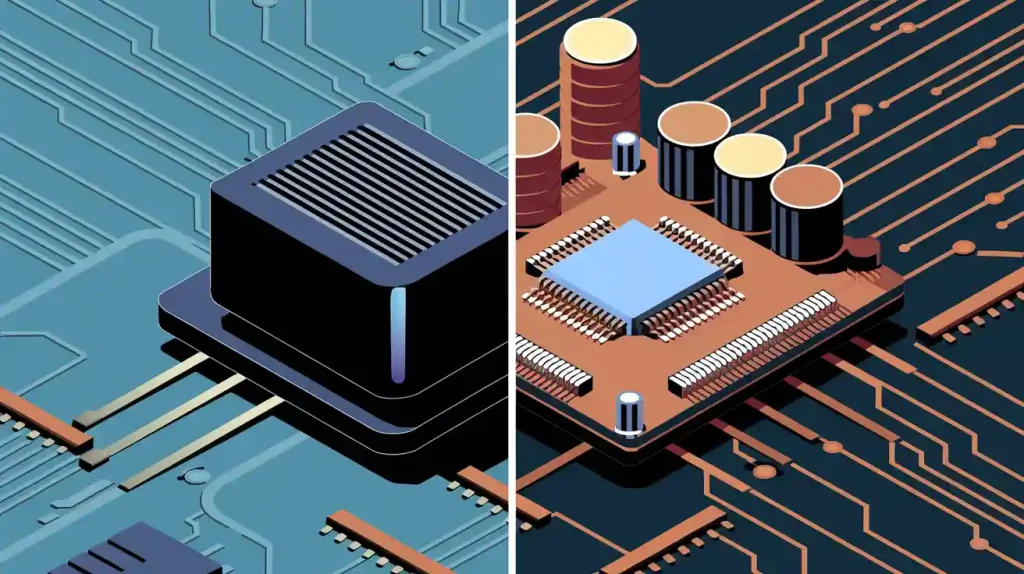
When you compare KiCad vs Altium Designer, the best choice really depends on your specific needs, budget, and the type of PCB projects you are working on. KiCad is an open-source EDA tool that is particularly effective for open-source projects, students, and individuals seeking free design features. On the other hand, Altium Designer is tailored for larger, more complex designs and is ideal for teams that need to adhere to strict regulations. It’s important to consider your level of expertise, the scale of your design, and whether collaboration with others is necessary. For optimal results, it’s advisable to seek guidance from experienced designers.
kicad vs altium designer
Key Differences
KiCad and Altium Designer are both used for pcb design. You might wonder which one is better for you. KiCad is free and open-source. Altium costs money and has more advanced features.
KiCad is good for students and hobbyists. It helps people start designing without paying. You can use KiCad on Windows, macOS, or Linux. The interface is easy to use. There are many guides online. Altium is made for engineers and teams. It has strong tools for big projects. It supports industry standards.
Tip: KiCad is great for learning and small projects. Altium is better if you work for a company or need to follow strict rules.
Altium lets you use big component libraries. You can work with others at the same time. KiCad has basic teamwork features. You might need extra tools for group work. Altium has better simulation and manufacturing help. KiCad covers simple needs. Advanced users may want more choices.
Feature Summary
Here is a table that compares KiCad and Altium Designer. It shows the main differences and strengths of each pcb design tool.
Feature | KiCad | Altium Designer |
|---|---|---|
Cost | Free, open-source | Paid, commercial |
Platform Support | Windows, macOS, Linux | Windows |
User Interface | Simple, beginner-friendly | Advanced, professional |
Collaboration | Basic, manual | Real-time, cloud-based |
Component Libraries | Community-driven, open | Extensive, managed |
Simulation Tools | Basic SPICE | Advanced analysis |
Manufacturing Support | Standard outputs | Industry-grade outputs |
Project Complexity | Small to medium | Medium to large |
KiCad is easy for beginners who want to design pcb boards.
Altium is good for big projects and team work.
KiCad is best for learning and small designs.
Altium is best for professional work and strict rules.
KiCad and Altium Designer each have special strengths. KiCad is good because it is free and easy to get. Altium is good because it has strong features and teamwork tools. Think about your project size, your budget, and if you need to work with others before you choose.
pcb design software cost
KiCad Pricing
When you look for pcb design software, you may want to know about cost and licensing. KiCad stands out because it is open-source. You do not pay any cost to download or use it. You can install KiCad on your computer and start your pcb design right away. You do not need to worry about licensing fees or subscriptions. This makes KiCad a great choice for students, hobbyists, and anyone who wants to learn about pcb design software without spending money.
Note: KiCad lets you use all features for free. You do not need to buy extra tools or pay for updates. The open-source model means you can share your designs and even help improve the software.
If you want to use pcb design software for personal or educational projects, KiCad gives you a simple way to start. You do not face hidden costs or complex licensing rules.
Altium Pricing
Altium is a commercial pcb design software. You need to pay for a license to use it. The cost and licensing for Altium can be high, especially for small teams or single users. Altium offers different licensing options. You can choose a yearly subscription or a one-time license. Each option has its own cost. You also need to pay for updates and support.
Altium’s licensing system helps companies manage many users. If you work in a team, you may need several licenses. This can increase the total cost. Altium gives you advanced tools and strong support, but you must plan for the cost and licensing before you start your pcb project.
Software | Cost | Licensing Type | Updates/Support |
|---|---|---|---|
KiCad | Free | Open-source | Free |
Altium | Paid | Commercial, subscription or perpetual | Paid |
Tip: Always check the latest cost and licensing details on the official websites before you choose your pcb design software.
User Interface

Learning Curve
You want to start your first pcb project. You need to choose a tool that matches your skill level. KiCad gives you a simple interface. You see clear menus and easy-to-understand icons. You can find many tutorials online. These guides help you learn each step of the design process. You do not need much experience to begin with KiCad. You can explore features at your own pace.
Altium offers a more advanced interface. You see many options and tools on the screen. You may feel overwhelmed at first. You need to spend time learning how each tool works. Altium provides training resources and support. You can watch videos or read guides. If you work in a team, you may get help from coworkers. You need patience to master Altium, but you gain powerful design skills.
Tip: If you want to learn quickly, KiCad is a good choice. If you want to work on complex pcb projects, you should invest time in learning Altium.
Workflow
You want a smooth workflow when you create a pcb. KiCad lets you move from schematic to board layout with simple steps. You can switch between windows easily. You can save your design and come back later. KiCad supports basic checks to help you avoid mistakes.
Altium gives you a professional workflow. You can manage large projects with many team members. You can track changes and share files in real time. Altium helps you follow industry standards. You can use advanced tools to check your design before you send it to manufacturing.
Workflow Feature | KiCad | Altium |
|---|---|---|
Schematic to Layout | Simple steps | Advanced integration |
Team Collaboration | Manual sharing | Real-time cloud sharing |
Error Checking | Basic | Advanced |
Note: You should choose the workflow that fits your project size and your team’s needs.
Features Comparison

Core Tools
When you begin a pcb project, you need good software. Both kicad and altium have tools to help you design. You can draw schematics and add parts. Routing lets you connect everything together. These tools help you make your ideas real.
Here are some main features in kicad and altium:
Schematic capture: You can draw and change circuit diagrams.
PCB layout: You put parts down and connect them with routing.
Design rule checks: The software finds mistakes before you build.
3D viewer: You can look at your pcb in three dimensions.
Altium has advanced routing tools for hard layouts and big boards. Kicad is simple and works well for small projects. You get the basic tools you need to finish your design. Both let you import and export files so you can share your work.
Note: Altium is better for big projects with more features. Kicad is good for learning and simple tools.
Advanced Simulation
Simulation lets you test your pcb before you build it. You can see how your circuit works and find problems early. Both kicad and altium have simulation, but they are not the same.
Altium has strong simulation tools. You can check signal integrity and test fast designs. The software shows how your circuit changes. You can use these tools to make sure your design is right.
Kicad has basic simulation tools. You can use SPICE to test easy circuits. These tools help you learn how your pcb will work. For hard projects, you might want more simulation choices.
Simulation Feature | KiCad | Altium |
|---|---|---|
SPICE Support | Yes | Yes |
Signal Integrity | Basic | Advanced |
High-Speed Analysis | Limited | Full |
Tip: Always use simulation to check your design first. This can help you save time and money.
Component Libraries
KiCad Libraries
When you start a design in kicad, you get access to many component libraries. These libraries help you find the parts you need for your pcb. You can choose from resistors, capacitors, chips, and connectors. The kicad community creates and shares new libraries all the time. You can download extra libraries if you need more options.
You can add custom parts to your project. If you want a special chip or connector, you can make your own symbol and footprint. This helps you match your design to real-world parts. You can also use online tools to convert other library formats for kicad.
Tip: You should check the library before you start routing. Make sure each part matches your design needs.
KiCad lets you update libraries easily. You can keep your project up to date with the latest parts. You can also share your libraries with friends or classmates. This makes teamwork easier when you work on group projects.
Altium Libraries
Altium gives you powerful library management tools. You can search for thousands of parts from trusted suppliers. You get access to symbols, footprints, and 3D models for each part. This helps you build accurate pcb designs.
You can use Altium’s cloud libraries to work with your team. Everyone can see the same parts and updates. You can also lock parts to keep your design safe. Altium helps you avoid mistakes by checking each part before you start routing.
Altium supports advanced features like parametric search. You can filter parts by voltage, size, or manufacturer. This saves you time when you build complex designs. You can also link your libraries to supply chain data. This helps you find parts that are easy to buy.
Note: You should use Altium’s library tools if you want to work on big projects or need strong teamwork features.
Library Feature | KiCad | Altium |
|---|---|---|
Community Libraries | Yes | Limited |
Cloud Collaboration | Manual | Real-time |
3D Models | Some | Extensive |
Custom Parts | Easy to add | Advanced options |
Collaboration Tools
Altium 365
You can use Altium 365 to make teamwork easy and fast. This cloud platform lets you share your design projects with others in real time. You do not need to send files back and forth. Instead, you invite your team to view or edit your work online. This helps you avoid mistakes and saves time.
Altium 365 gives you strong tools for collaboration and version control. You can track every change in your project. If someone makes a mistake, you can go back to an earlier version. You also see who made each change. This keeps your design safe and organized.
Tip: With collaboration through altium 365, you can work with engineers anywhere in the world. You do not need to be in the same office.
Altium 365 also connects with supply chain data. You can check if parts are available before you finish your design. This helps you avoid delays when you build your board. Many companies choose altium because these features make teamwork simple and secure.
KiCad Solutions
KiCad gives you basic ways to work with others. You can share your design files by email or cloud storage. You and your team can use tools like Git to manage changes. This helps you keep track of updates, but you must set up these tools yourself.
KiCad does not have built-in cloud features like altium. You need to save your work often and tell your team when you make changes. If you want to use collaboration and version control, you can use free software like GitHub or GitLab. These tools help you see who changed what and when.
You can:
Share project folders with your team.
Use version control tools to track changes.
Work on different parts of the design at the same time.
Note: KiCad works well for small teams or school projects. If you need advanced teamwork tools, you may want to try altium.
Manufacturing Support
Altium Outputs
When you finish a design in Altium Designer, you get lots of help for making your board. Altium gives you many ways to save your files. You can make Gerber files. Factories use these files to build printed circuit boards. You also get drill files and pick-and-place files. You can make assembly drawings too. These files help the factory build your board the right way.
Altium Designer lets you check your files before sending them out. You can use a viewer to look at your Gerber files. This helps you find mistakes early. You can use output job files to keep all your data together. This makes your work faster and easier.
Tip: Always look over your files before sending them. This step helps you stop big mistakes.
Altium has advanced features like panelization. You can put many boards on one panel to save money. The software helps you follow industry rules. Your design will meet what factories need.
KiCad Outputs
KiCad gives you tools to get your design ready for making. You can export Gerber files, drill files, and assembly drawings. Most board makers use these files. KiCad makes it easy to create outputs. You pick the layers you want and export with a few clicks.
You can use a Gerber viewer to check your files. This tool helps you find problems before sending your design. KiCad has basic panelization, but you might need extra tools for hard jobs.
You can:
Export normal files for making boards.
Check your files with the Gerber viewer.
Share your files with any board maker.
Note: Always ask your factory what files they need. This step helps you avoid waiting.
Both Altium and KiCad give you what you need for making boards. Altium has more options and extra features for big projects. KiCad covers the basics and works well for small or medium designs.
Simulation Tools
Altium Analysis
You want to make sure your circuit works before you build it. Altium Designer gives you powerful simulation tools that help you test your design. You can run simulation and analysis on your circuits to see how they behave. Altium lets you check signal integrity, power flow, and timing. You can use these tools to find problems early.
Altium Designer has many features for simulation and analysis. You can model analog and digital circuits. You can see how signals move through your design. The software shows you graphs and charts that make results easy to understand. You can change values and watch how your circuit reacts.
Tip: Use Altium’s simulation and analysis to catch mistakes before you order your board. This step saves you time and money.
Altium Designer helps you work with large projects. You can test complex boards with many parts. You can share results with your team. This makes your design process smoother.
KiCad SPICE
KiCad gives you a way to test your design with SPICE simulation. You can use this tool to run basic simulation and analysis. SPICE lets you check how your circuit works. You can see voltages, currents, and waveforms.
KiCad’s simulation tools work well for simple projects. You can model small circuits and learn how each part affects the design. You can change values and see results right away. The software helps you understand how your board will behave.
You can:
Run SPICE simulation on your schematic.
View graphs of voltage and current.
Test different parts and values.
KiCad does not have all the advanced features of Altium. You get enough tools for learning and small designs. If you need more, you can use extra programs with KiCad.
Note: Always test your design with simulation before you build. This step helps you avoid problems later.
kicad for Your Project
Ideal Users
You may wonder who should use kicad for their next design. If you are a student, hobbyist, or someone new to electronics, kicad gives you a great way to start. You do not need to pay for a license. You can install it on Windows, macOS, or Linux. Many people choose kicad because it is open-source. You can learn how to make a pcb without spending money.
If you like to share your work or join community projects, kicad fits your needs. You can find many guides and videos online. You can also ask questions in forums. Teachers often use kicad in classrooms. You can use it at home or in school.
Tip: If you want to learn by doing, kicad helps you build real designs and see results fast.
Best Project Types
You can use kicad for many types of projects. It works best for small to medium designs. If you want to make a simple sensor board, a hobby robot, or a classroom project, kicad gives you the tools you need. You can draw your circuit, lay out the board, and export files for manufacturing.
Here is a quick list of projects where kicad shines:
School electronics assignments
DIY gadgets and maker projects
Open-source hardware designs
Personal learning boards
You can finish your design and share it with others. Many people use kicad for open-source projects because it is free and easy to use. If you want to try new ideas or learn about pcb design, kicad is a smart choice.
altium for Your Project
Ideal Users
You might ask who should use altium designer. If you work at a company, altium can help you a lot. Many engineers and designers pick this tool for their jobs. Altium has special features for teamwork and big projects. You can handle hard boards and follow important rules. Altium keeps your work safe and neat.
You may want good teamwork tools. Altium lets you share in the cloud and keep track of changes. You can see updates and work with others right away. If you want to make strong products, these tools help you. You can also link your design to supply chain info. This helps you find parts and stop delays.
Tip: If you need to follow rules or get certified, altium is a smart pick.
Best Project Types
Altium works for many kinds of projects. It is best for medium or big designs. You might need to make boards with many layers or fast circuits. Altium has routing and simulation tools for these jobs.
Here is a table that shows where altium is best:
Project Type | Why Choose Altium? |
|---|---|
Industrial electronics | Handles tough needs |
Medical devices | Follows strict rules |
Aerospace systems | Has advanced design tools |
Consumer products | Helps big teams and lots of data |
You can make things for factories, hospitals, or planes. Altium helps you meet safety and quality goals. You can also work on electronics with many people. If your pcb project needs strong help and special tools, altium gives you what you need.
right tool for your project
Expert Advice
Choosing the right tool for your project can feel hard. You want to make sure your work goes smoothly from start to finish. You should look at your needs before you pick a tool. Ask yourself a few questions:
Do you work alone or with a team?
Is your project simple or complex?
Do you need to follow industry rules?
How much money can you spend?
If you work on small or personal projects, kicad gives you a strong start. You do not pay for it. You can learn how to design a pcb without stress. Many students and hobbyists use kicad for this reason. You find lots of guides and help online.
If you work in a company or need to follow strict rules, altium may fit you better. You get advanced features for teamwork and big designs. Altium helps you keep your work safe and organized. Many engineers use it for professional projects.
Tip: Always match your tool to your project needs. You save time and avoid problems later.
Decision Factors
You want to make a smart choice. Look at these key factors before you decide:
Factor | When to Choose KiCad | When to Choose Altium |
|---|---|---|
Budget | You want free software | You have funds for licenses |
Project Size | Small to medium designs | Medium to large designs |
Teamwork | You work alone or in small groups | You need strong team features |
Industry Standards | Not required | Must follow strict rules |
Learning Curve | You want to learn quickly | You want advanced skills |
You should also think about the future. If your projects may grow or need more features, plan ahead. Sometimes, you may need to switch tools as your skills improve.
Note: If you feel unsure, talk to an expert. Many professionals can help you pick the right tool for your project. They know what works best for different types of design.
You want your pcb work to go well. Take time to compare kicad and altium. Think about your goals, your team, and your budget. The right tool for your project will help you finish your design with less stress and better results.
You should choose the best tool for your projects by looking at your needs, budget, and how you plan to work with others. Kicad works well for simple design tasks and learning. Altium gives you strong features for bigger teams and advanced work. Think about what you want now and what you may need later. If you feel unsure, talk to a professional for advice.
FAQ
Can you use KiCad for professional PCB designs?
You can use KiCad for professional work. Many engineers choose it for small and medium projects. You get strong design tools and free updates. Some companies use KiCad for open-source hardware.
Does Altium Designer work on Mac or Linux?
Altium Designer only works on Windows. You cannot install it on Mac or Linux. If you need cross-platform support, you should try KiCad.
Is KiCad hard to learn for beginners?
You can learn KiCad quickly. The interface is simple. Many guides and videos help you start. You do not need much experience. You can practice and improve your skills.
How do you share projects with a team in KiCad?
You share KiCad projects by sending files or using version control tools like Git. You can work with others, but you must manage updates yourself. KiCad does not have built-in cloud sharing.
What files do you need for PCB manufacturing?
You need Gerber files, drill files, and assembly drawings. Both KiCad and Altium Designer create these files. You should check with your manufacturer for exact file requirements.