Picture this: you settle in for movie night, hit play, and the screen freezes. The spinning wheel taunts you. Pixelated blocks replace your hero’s face. This frustration comes from a hidden process called video encoding.
Video encoding shrinks raw video data into a smaller, more efficient digital format. Without it, your Wi-Fi network couldn’t handle the huge files. So, how does this invisible compression tech make high-definition streaming possible over a wireless link? You’ll find the answer in plain, simple words. You’ll also learn practical tips to turn your own streaming experience from frustrating to flawless.
Key Takeaways
Video encoding makes big video files smaller so your Wi-Fi can play them without lag.
Codecs like H.264 and H.265 use clever methods to make files smaller without hurting quality.
Good encoding balances compression, speed, and error fixing to keep the stream stable.
Use the 5GHz band and put your router in the middle of your home to make Wi-Fi streaming better.
Adaptive bitrate streaming changes video quality to avoid buffering.
Understanding Video Encoding Basics
The Raw Video Size Problem
To understand why encoding matters, you first need to see the size of raw video. Uncompressed video is enormous. Every frame contains millions of pixels. Every pixel carries color information. Multiply all those pixels by the number of frames per second, and the numbers become staggering.
Consider this example. A single minute of 1080p video at 60 frames per second produces a data rate of nearly 3,000 megabits per second. That is roughly 22.5 gigabytes per minute. Your home Wi-Fi network simply cannot handle that. Even the fastest Wi-Fi connections cannot handle that.
The table below shows how resolution and frame rate affect the raw data rate:
Color Depth | Resolution | Frame Rate (fps) | Data Rate (Mbit/s) |
|---|---|---|---|
24-bit | 640×480 | 30 | 221 |
24-bit | 1280×720 | 30 | 663 |
24-bit | 1280×720 | 60 | 1320 |
24-bit | 1920×1080 | 60 | 2980 |
24-bit | 3840×2160 | 60 | 11900 |
24-bit | 3840×2160 | 120 | 23800 |
The formula is simple: data rate equals color depth multiplied by vertical resolution, horizontal resolution, and frame rate. Doubling the resolution or the frame rate doubles the data rate. A 4K stream at 60 fps requires nearly 12,000 megabits per second raw. That is far beyond what any Wi-Fi network can deliver.
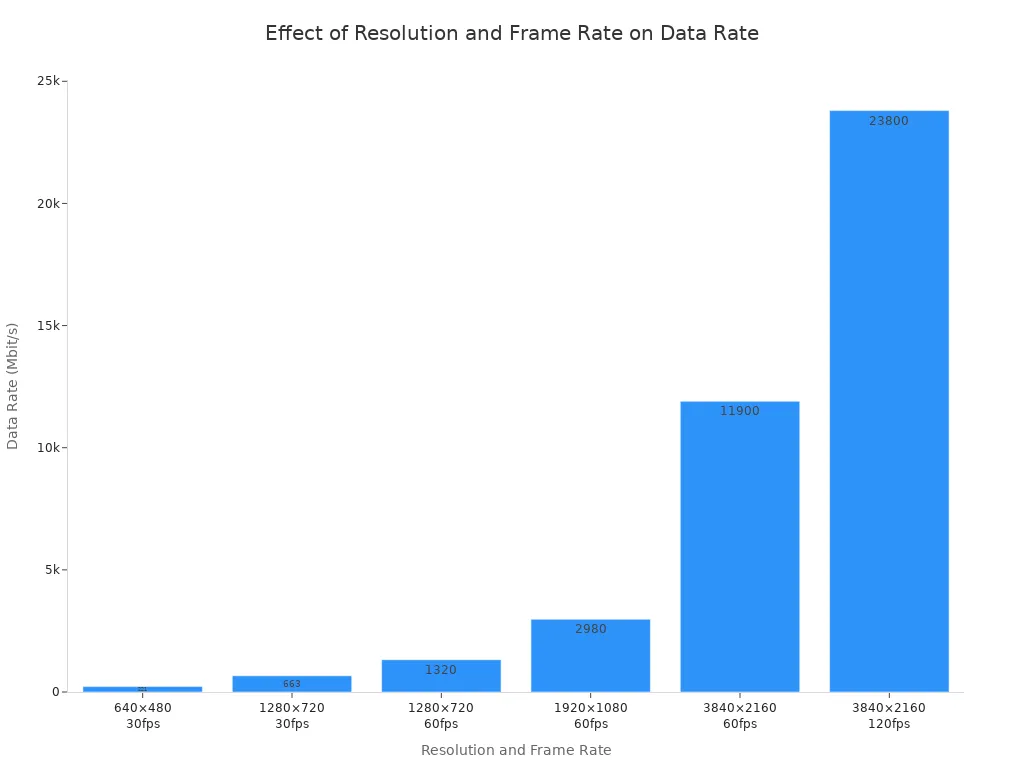
This chart shows the same data visually. The jump from 1080p to 4K is massive. The jump from 60 fps to 120 fps is equally massive. Without compression, streaming video over Wi-Fi is impossible. You need a way to shrink these files dramatically before they can travel through the air.
Compression and Codecs Explained
This is where video encoding enters the picture. A codec is a set of rules for compression. It tells the encoder how to shrink the video and tells the decoder how to rebuild it. Two common codecs are H.264 (also called AVC) and H.265 (also called HEVC).
Video encoding reduces file size through several techniques. First, it exploits spatial redundancy. Within a single frame, many areas look similar. The encoder can describe a large blue sky using just a few instructions instead of storing every pixel. It uses the Discrete Cosine Transform (DCT) to analyze blocks of pixels and express them more efficiently. The encoder splits the frame into blocks called macroblocks. H.264 uses 16×16 pixel blocks. HEVC uses larger blocks up to 64×64 pixels.
Second, the encoder uses quantization. It reduces the precision of the transformed data, lowering the data volume. Some detail is lost, but the human eye may not notice. This is lossy compression, and it is the main reason file sizes shrink so dramatically.
Third, the encoder applies motion compensation. Instead of encoding every frame from scratch, it tracks movement between frames. It records only the changes. A static background appears just once. Only the moving objects get updated. This saves enormous amounts of data. The encoder uses different frame types: I-frames hold a complete picture, while P and B frames rely on other frames and store only the differences.
Fourth, entropy coding assigns shorter codes to frequent patterns and longer codes to rare ones. This maximizes data representation efficiency. It works like using abbreviations for common words.
Modern codecs also use psychovisual modeling. They discard data that human vision barely notices. For example, the human eye is more sensitive to brightness than to color. The encoder converts the video from RGB to YUV, separating luminance from chrominance. It retains more luminance information and less chrominance information. This technique, called chroma subsampling, reduces bitrate while preserving perceived detail.
H.264 includes error resilience tools designed for wireless transmission. These tools help the decoder handle packet loss. If a few packets go missing during Wi-Fi transmission, the decoder can still reconstruct a usable image. This makes H.264 a strong choice for streaming over wireless networks.
HEVC follows the same core principles but applies them more aggressively. It widens the areas inspected for changes from 16×16 pixels to sizes up to 64×64 pixels. This allows more efficient compression of high-resolution video. HEVC can deliver the same quality as H.264 at roughly half the bitrate.
These compression techniques make streaming possible. They turn an impossible 22.5 GB per minute into a manageable stream.
How Video Encoding Enables Wi‑Fi Transmission
Balancing Compression, Latency, and Error Resilience
Video encoding for Wi‑Fi transmission involves a careful balance. You have three things that work against each other: compression, latency, and error resilience. If you push one too far, the others get worse.
Higher compression lowers the amount of data needed. This helps your Wi‑Fi network carry more video. But aggressive compression needs more processing power. It also makes the encoder look at more frames ahead of time. This looking ahead creates delay, called latency. Low‑latency modes in codecs like HEVC and VP9 focus on speed over compression. They limit heavy coding tools and avoid storing many frames. The result: faster delivery but higher bit rates. You trade compression efficiency for quick response. Inter‑frame compression using P‑frames and B‑frames cuts data by using other frames, but this process adds extra work.
Error resilience adds another layer of difficulty. Wireless channels lose packets. Interference, distance, and obstacles all cause packet loss. Without protection, lost packets create visual glitches. Error correction techniques help fix errors that occur during transmission. These methods add extra data to the stream. The decoder can then rebuild corrupted or missing information. This protection keeps your picture stable even when the wireless signal gets weak.
Forward error correction (FEC) takes this idea further. The RaptorQ encoder adds a 4‑byte FEC trailer to each video packet. It collects data from all source packets within a protection period. Then it computes repair symbols. These repair packets travel with the source packets. The receiver needs enough source and repair symbols to recover dropped packets. This adds strength against packet loss on poor Wi‑Fi channels.
FEC costs you bandwidth and latency. You must send repair data along with your video. You also wait longer to collect enough packets for recovery. Increasing FEC bandwidth with fixed latency increases protection. Increasing FEC latency with fixed bandwidth also increases protection. You choose the balance that fits your streaming situation. A live sports broadcast might want low latency. A movie streaming service might want maximum protection.
HEVC offers better error resilience than H.264. It includes more advanced features that handle tough network conditions with high packet loss. H.264’s error resilience is less effective, causing noticeable quality loss under similar conditions. HEVC also gives about double the compression efficiency. You get the same video quality at half the bit rate. Larger coding units up to 64×64 pixels and advanced prediction modes make this possible. This efficiency matters a lot for wireless streaming.
Modern Wi‑Fi Standards and Encoding Synergy
Modern Wi‑Fi standards work hand‑in‑hand with efficient codecs to deliver high‑resolution wireless streaming. These standards offer higher speed and lower latency than older versions. The codec shrinks the video data. The Wi‑Fi standard moves it quickly. Together, they make high‑resolution wireless streaming practical.
Using different Wi‑Fi bands can help adapt to conditions, providing more stable transmission. Different bands offer different trade-offs in range and speed. Encoders can switch between bands based on conditions. This flexibility gives more stable transmission.
The synergy between encoding and Wi‑Fi standards keeps improving. Each new codec compresses more efficiently. Each new Wi‑Fi standard transmits faster with lower latency. Video encoding remains the key bridge that makes wireless video transmission possible.
Encoding’s Impact on Streaming Quality

Benefits: Reduced Bandwidth and Faster Load Times
Video encoding clearly improves your streaming experience. The biggest plus is using less bandwidth. Compressed video needs much less data to move from the server to your screen. This means your Wi-Fi can handle more streams at once without slowing down.
Smaller files also mean faster load times. When you hit play, the player grabs the first few seconds of content quickly. Good encoding shrinks those early data packets. Your stream starts almost right away instead of making you wait.
Better encoding typically improves streaming performance.
Adaptive bitrate streaming boosts these benefits even more. This tech creates several copies of the same video at different quality levels. Your device picks the best one based on your current network. If your Wi-Fi gets weak, the player switches to a lower-quality copy. This stops buffering and keeps playback smooth.
Better encoding typically improves streaming performance, resulting in faster startup, less buffering, and higher bitrates.
Trade-Offs: Quality Loss and Artifacts
Video encoding has downsides too. Lossy compression throws away some visual details for good. At low bitrates, you might see artifacts. Blocky patches show up when the encoder can’t keep fine details. Blurring happens when quantization removes too much high-frequency data.
Quality check tools reveal these trade-offs. Some metrics are sensitive to small brightness changes, while others better match human perception for compression issues. They catch blocking and contouring problems.
Use adaptive bitrate streaming to reduce startup delay.
Adaptive bitrate streaming helps reduce quality loss. The player watches your connection all the time. When bandwidth drops, it asks for a lower-quality copy. This change stops severe artifacts. You might see a small resolution dip, but the video stays watchable. Without this fix, you’d face constant rebuffering instead.
Practical Tips for Better Wi-Fi Streaming
Optimizing Your Home Network for Video
Your router’s location plays a big part in how well your video streams. Put it in the middle of your home, up off the floor, and away from big furniture or metal objects. Concrete walls and basements block signals a lot. The 5 GHz band loses more signal through obstacles than the 2.4 GHz band. But the 5 GHz band has more non-overlapping channels than the 2.4 GHz band, reducing interference. For streaming video, the 5 GHz band is the best pick. It sends data faster for high-bandwidth tasks like streaming. It also has less crowding, so you get fewer interruptions that slow things down.
Big homes should use a mesh Wi-Fi system. One router can’t cover a large home. Mesh systems use several nodes placed around your home. These nodes remove dead zones behind thick walls. They give you smooth roaming with one network name. Mesh systems can share bandwidth across many devices. This stops congestion when many family members stream at the same time.
Choosing the Right Streaming Settings
Your streaming app’s quality settings matter a lot. Most apps use adaptive bitrate streaming (ABR). This tech makes multiple quality versions of the same video. The player starts with the lowest bitrate segment. It checks your download speed all the time. If your speed is higher than the current segment’s bitrate, the player asks for a better quality version. If the buffer drops too low, the player switches to a lower bitrate right away. This real-time change stops artifacts like blocking and blurring. These artifacts show up at low bitrates when block-based coding schemes can’t keep fine detail.
You can also change settings yourself. Dropping resolution from 4K to 1080p cuts bandwidth needs a lot. This helps when your Wi-Fi signal is weak. For professional settings, specialized encoders give reliable wireless video transmission. These encoders use efficient video encoding to send stable streams over office networks.
You started with a spinning wheel and pixelated faces. Now you understand the invisible work behind every smooth stream. Raw video files are impossibly large. Video Encoding shrinks them into something your Wi-Fi can carry. It balances size, speed, and quality with every frame.
You can apply this knowledge tonight. Move your router to a central spot. Switch to the 5GHz band. Adjust your streaming app’s quality settings. These small changes make a real difference.
The future looks even brighter. New codecs promise better compression. New Wi-Fi standards will deliver faster speeds with lower latency. Together, they will make 8K wireless streaming feel effortless. Your movie nights will only get better from here.
FAQ
Will H.265 replace H.264 for streaming?
H.265 compresses video better and handles errors better than H.264. It gives the same quality at about half the data rate. More devices can use H.265 now. Its use is growing. It will replace H.264 in many streaming services.
Why does my video buffer even with a fast connection?
Buffering happens when data packets are lost during wireless transfer. Interference, distance, or obstacles break your signal. Error correction tools fix some lost data. If they can’t fix it, your video stops. For smooth streaming, a strong signal is more important than fast speed.
Does video encoding always reduce picture quality?
Yes, lossy compression drops some visual details. At low bitrates, you might see blocky spots or blurriness. Adaptive bitrate streaming changes quality on the fly. It balances smooth playback with good enough picture.
What do I need to stream 4K video over Wi-Fi?
You need a modern codec like HEVC to compress 4K well. Your router should support the latest Wi-Fi standards for enough speed. Put the router in the middle and use the 5GHz band for the best results.