Introduction
Welcome to this comprehensive Altium Designer PCB layout tutorial. This guide gives complete step-by-step instructions for transforming your finished schematic design into a professional, manufacturing-ready printed circuit board. Whether you’re designing your first PCB or refining your skills, this tutorial covers every essential stage with practical, hands-on examples.
Altium Designer is an industry-standard PCB design software relied upon by thousands of engineers and companies worldwide. Its powerful features facilitate efficient design from simple 2-layer boards to complex multi-layer systems. This tutorial focuses on a practical approach using a real voltage regulator project, ensuring you understand both the procedures and the reasoning behind each decision.

What You Will Learn
By completing this tutorial, you will master:
- Complete PCB layout workflow from schematic to manufacturing files
- Importing schematics into the PCB editor using Engineering Change Orders (ECO)
- Strategic component placement for optimal routing and signal integrity
- Design rules configuration to ensure manufacturability
- Manual and interactive routing techniques
- Ground plane creation and copper pour management
- Design Rule Check (DRC) verification and violation resolution
- 3D visualization and final manufacturing file preparation
Prerequisites
Before beginning this tutorial, ensure you have:
- Altium Designer installed (version 20 or later recommended)
- Basic understanding of electronic schematics and component symbols
- A completed schematic design ready for PCB layout
- Familiarity with the Altium Designer interface (helpful but not required)
- PCB manufacturer’s design specifications (trace width, clearance, via sizes)
Sample Project Overview
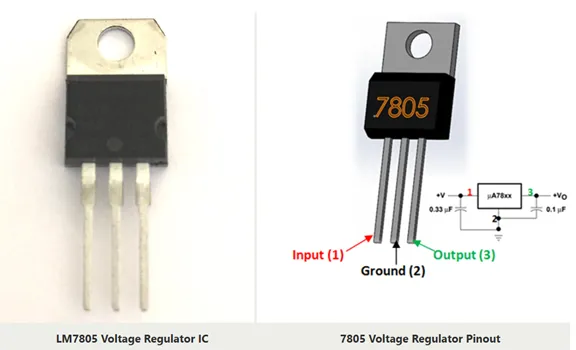
This tutorial uses a practical example: a simple yet complete LM7805 voltage regulator circuit. This project demonstrates all fundamental PCB layout concepts while remaining accessible for beginners. The circuit converts a higher DC voltage (7-35V) to a stable 5V output, a common requirement in many electronics projects. Also a step-by-step guide that how to use and operate Altium Designer software is elaborated. Different functions and features are discussed.
Project specifications:
- Circuit: LM7805 linear voltage regulator with input/output filtering
- Components: Approximately 10-15 parts including IC, capacitors, resistors, LEDs
- Board Size: 50mm × 40mm (compact design suitable for prototyping)
- Layer Count: 2-layer design (Top and Bottom copper layers)
- Complexity: Beginner-friendly while demonstrating professional techniques
Creating a New PCB Document
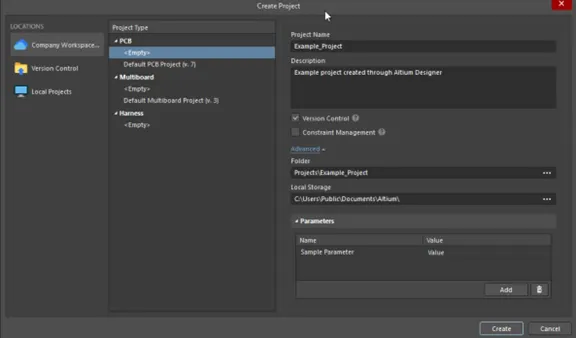
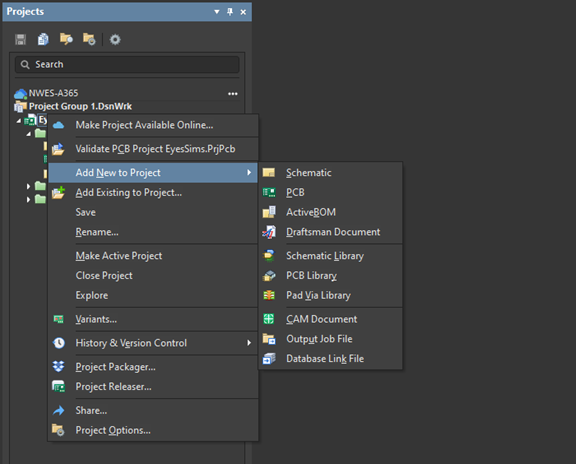
The first step in PCB layout is to create a new PCB document within your existing Altium Designer project. This PCB document will be linked to your schematic, allowing automatic synchronization of components and connections through the Engineering Change Order system. A new project can be created within Altium Designer using the Create Project dialog (File » New » Project).
Adding PCB to Existing Project
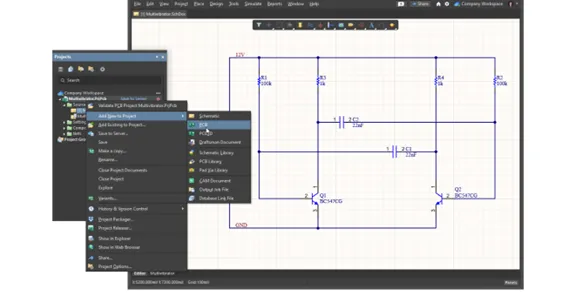
In the Projects panel (typically located on the left side of the Altium interface), you’ll see your project structure including the schematic file. To add a new PCB document, right-click on your project name at the top of the panel. From the context menu that appears, navigate to ‘Add New to Project’ and select ‘PCB’. Altium will create a blank printed circuit board document and add it to your project structure.
Immediately save this new PCB file with a descriptive name that matches your project. For example, if your project is ‘Voltage_Regulator’, name the PCB file ‘Voltage_Regulator_PCB.PcbDoc’. Save it in the same directory as your schematic to keep project files organized. This naming convention helps maintain clarity when managing multiple design files.
Understanding the PCB Editor Interface
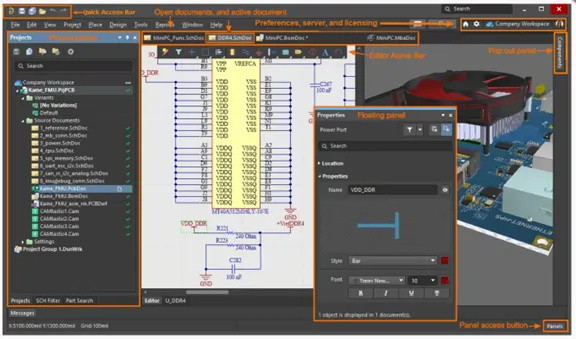
When the PCB editor starts, you’ll see a black workspace area (the default background color, configurable in preferences). The interface consists of several key elements: the main workspace in the center where you’ll design your PCB, the Projects panel on the left showing your project structure, the PCB panel (usually on the right) providing quick access to layers and objects, the Properties panel for viewing and editing object properties, and the Messages panel at the bottom for displaying warnings and errors.
The toolbar at the top contains frequently used commands for placement, routing, and viewing. Familiarize yourself with the layer tabs at the bottom of the workspace. These allow quick switching between copper layers, silkscreen, solder mask, and other printed circuit board layers. The status bar at the very bottom displays cursor coordinates and the current active layer, essential information during layout work.
Importing Schematic into PCB Layout
The Engineering Change Order (ECO) system in Altium Designer confirms accurate synchronization between your schematic and PCB. This process converts all components, connections (nets), design rules, and other schematic information into the PCB environment, maintaining design integrity throughout the project lifecycle.
Design → Import Changes from Schematic
With your PCB document active (click on its tab if multiple documents are open), navigate to the Design menu in the top menu bar. Select ‘Import Changes from [YourProjectName].PrjPcb’. The project name will match your actual project. This action initiates the ECO process, comparing your schematic against the current PCB state and identifying what needs to be added, removed, or modified.
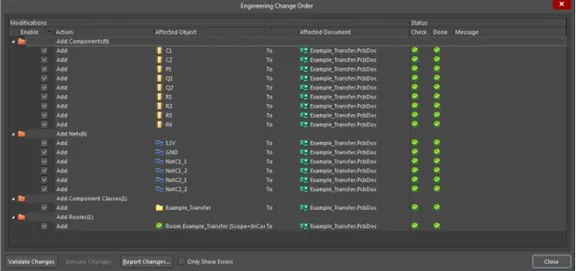
The Engineering Change Order dialog will appear, displaying a comprehensive list of all changes that will be applied to your PCB. This is a critical review stage – take time to understand what Altium has identified before proceeding with execution.
Reviewing Engineering Change Order (ECO)
The ECO dialog shows changes in a structured format. The ‘Add Component’ section lists every component from your schematic that will be added to the PCB – verify that all expected parts are present (ICs, resistors, capacitors, connectors, etc.). Check component designators (U1, R1, C1, etc.) to ensure nothing is missing.
The ‘Add Net’ section shows all electrical connections from your schematic. Each net name corresponds to a connection in your circuit (VCC, GND, signal names, etc.). Warnings appear in yellow – these typically indicate minor issues like unconnected pins. Errors appear in red and must be resolved before proceeding. Common warnings include unconnected power pins on ICs, which might be intentional in your design.
Before executing changes, click the ‘Validate Changes’ button at the bottom of the dialog. This performs a final check for any issues that would prevent successful import. Green checkmarks indicate validation passed. If errors appear, return to your schematic to correct the issues, then restart the import process.
Executing the Changes
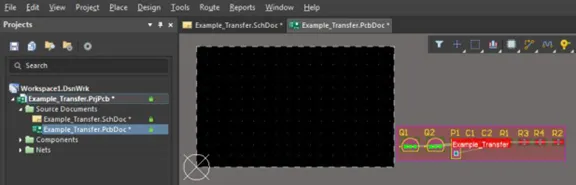
Once validation passes successfully, click the ‘Execute Changes’ button. Altium processes each change, adding components and nets to your PCB. You’ll see progress indicators as the import completes. When finished, all components from your schematic appear in the PCB workspace, initially stacked together in a rectangular outline called a ‘Room’.
The ratsnest, thin white or gray lines connecting component pads become visible, representing the electrical connections from your schematic. These lines show which pads need to be connected by copper traces during routing. The ratsnest serves as a visual guide throughout the layout process, vanishing as you complete each connection.
Board Shape and Configuration
Defining the physical board outline and configuring basic board parameters establishes the foundation for your PCB layout. The board shape determines the physical boundaries within which all components and routing must fit, while board properties affect manufacturing feasibility and electrical performance.
Defining Board Outline
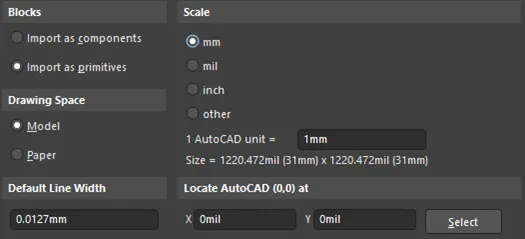
The board outline states the physical shape and size of your finished PCB. For this tutorial, we’ll create a simple rectangular board measuring 50mm × 40mm. Navigate to the Design menu and select ‘Board Shape’, then ‘Define from selected objects’. Alternatively, you can manually draw the outline using Place → Line, ensuring you select the Board Layer (also called Keep-Out Layer) from the layer dropdown.
To manually draw a rectangular outline, click at the first corner of your desired board shape, move to the second corner and click, then continue around the rectangle, double-clicking at the final corner to close the shape. Altium recognizes this closed boundary as your board edge. The outline appears as a thick line with a special appearance, distinct from regular traces. This boundary creates a keep-out region that prevents components and traces from being placed outside the board area.
Board Setup and Properties
Access precise board configuration through Design → Board Options. This dialog provides comprehensive control overboard dimensions, grid settings, and display preferences. Set the board dimensions precisely if you drew the outline manually or need to adjust an existing outline. For our project, ensure dimensions are exactly 50mm width × 40mm height.
Grid settings extensively impact placement and routing efficiency. The recommended grid for general PCB work is 25 mil (0.635mm) or 50 mil (1.27mm). Component pads are typically on 50 mil or 100 mil centers, so using compatible grid values ensures easy alignment. Set your preferred units (millimeters) based on your component library and personal preference. Most modern designs use metric (mm) sizing.
Enable ‘Snap to Grid’ to make component placement and routing more controlled and professional. You can temporarily override grid snapping by holding the Ctrl key while placing or moving objects when fine positioning is required.
Layer Stack Manager
The layer stackup defines the physical construction of your PCB, including the number of copper layers, their thickness, and the insulating dielectric material between them. Access this critical configuration through Design → Layer Stack Manager. For our 2-layer board, the stackup consists of a top copper layer, a core dielectric material (typically FR-4 fiberglass), and a bottom copper layer.
Set the copper thickness to 1 oz (35 micrometers), which is standard for most PCB manufacturers and provides good current-carrying capacity for typical circuits. The dielectric thickness for a 2-layer board is typically 1.6mm total board thickness, with the FR-4 core making up most of this dimension. FR-4 material has a dielectric constant (Er) of approximately 4.5 at 1 MHz, important for high-frequency designs but less critical for our voltage regulator.
Review your PCB manufacturer’s specifications to ensure your stackup matches their capabilities. Some manufacturers have minimum copper weights (thinner than 1 oz) or maximum thicknesses they can reliably produce. Configuring your stackup correctly from the start prevents costly redesigns later.
Setting Up Design Rules
Design rules are the foundation of PCB manufacturability and electrical performance. These rules define constraints for trace widths, clearances between objects, via sizes, and other important parameters. Proper design rule configuration avoids manufacturing issues and ensures your board can be reliably produced. Altium’s design rule system uses a priority hierarchy more specific rules override general rules when conflicts occur.
Opening Design Rules Dialog
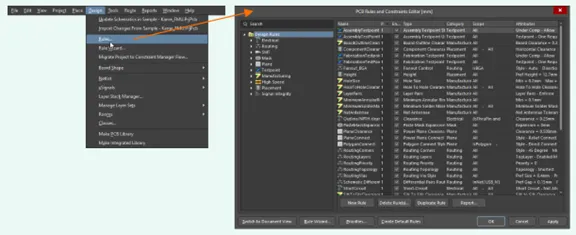
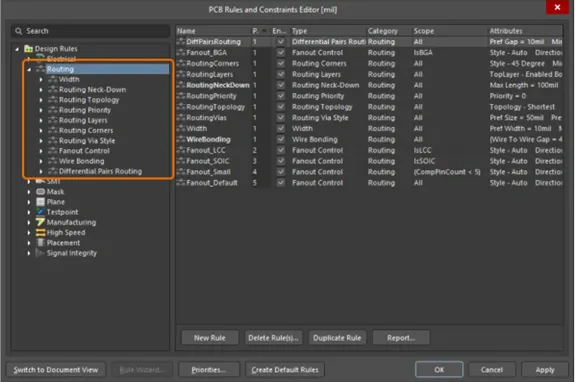
Access the comprehensive design rules system through Design → Rules. The Design Rules dialog opens, displaying rule categories in a tree structure on the left. Categories include Electrical (for signal integrity), Routing (for traces and vias), Manufacturing (for fabrication constraints), High Speed (for impedance control), Placement (for component spacing), and Signal Integrity (for advanced simulations).
Each rule has a priority value – higher priority rules take precedence when multiple rules could apply to the same object. This hierarchy allows you to set general defaults (low priority) and specific exceptions (high priority) for nets or component classes.
Critical Rules to Configure
Several rules need configuration before starting layout work. The most critical rules affect manufacturability and electrical safety. Each PCB manufacturer publishes design capabilities – use these specifications to set your rules appropriately.
A. Clearance Constraint
Clearance explains the minimum spacing between copper objects – traces, pads, polygons, etc. Navigate to Routing → Clearance in the rules tree. Set a minimum clearance value based on your manufacturer’s capabilities, typically 0.2mm (8 mil) for standard fabrication or 0.15mm (6 mil) for advanced processes. This clearance prevents electrical shorts during manufacturing and operation.
Consider creating separate clearance rules for different voltage levels. High-voltage circuits (above 50V) need larger clearances to prevent arcing. You can create net-specific rules by defining net classes (e.g., ‘Power Nets’ including VCC and VIN) and applying different clearance values to these classes. For our 5V regulator, standard clearance is sufficient for all nets.
B. Width Constraint
Trace width rules define acceptable dimensions for routing traces. Navigate to Routing → Width. For signal traces, set minimum width to 0.15mm (6 mil), preferred width to 0.25mm (10 mil), and maximum width to 2mm. The preferred width is what Altium uses by default during interactive routing – choosing 0.25mm provides a good balance between current-carrying capacity and space efficiency.
Power traces require special consideration. Create a separate width rule for power nets (VCC, VIN, VOUT, GND if not using copper pour). Set minimum 0.5mm, preferred 0.8mm to 1mm, and maximum 2mm or more. Wider traces reduce resistance and voltage drop, critical for power distribution. Calculating required trace width based on expected current using IPC-2221 standards or online trace width calculators.
C. Routing Via Style
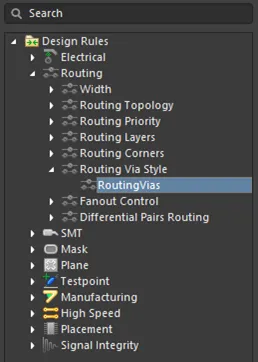
Vias connect traces between different copper layers. Navigate to Routing → Routing Via Style to configure via parameters. Set via diameter (the copper pad around the hole) to 0.6mm and via hole size (the drilled hole through the board) to 0.3mm. This configuration provides 0.15mm annular ring (the copper remaining around the hole after drilling), meeting most manufacturer minimums.
Larger vias (0.8mm diameter / 0.4mm hole) offer better reliability and current-carrying capacity but consume more board space. Smaller vias (0.4mm diameter / 0.2mm hole) save space but may incur additional manufacturing costs. For our simple 2-layer board, 0.6mm/0.3mm vias provide an excellent balance.
D. Manufacturing Rules
Manufacturing rules confirm your design can be reliably fabricated. Set Minimum Annular Ring to 0.15mm (Manufacturing → Minimum Annular Ring). This ensures sufficient copper remains around drilled holes after manufacturing tolerances. Configure Hole Size constraints (Manufacturing → Hole Size) with minimum 0.2mm and maximum 6mm to match typical drill bit capabilities.
Set Hole to Hole Clearance (Manufacturing → Hole to Hole Clearance) to at least 0.5mm. This spacing prevents drill bit breakage during manufacturing and ensures adequate board strength. Always consult your chosen PCB manufacturer’s design specifications and set rules to match or exceed their requirements.
Component Placement Strategy
Component placement is one of the most significant phases of printed circuit board design. Poor placement affects routing difficult or impossible and can cause signal integrity issues, electromagnetic interference, and thermal problems. Good placement makes routing straightforward and improves board performance. Take time to plan placement carefully before starting any routing. This is much easier to move components now than after routing starts.
Organising Components (Room)
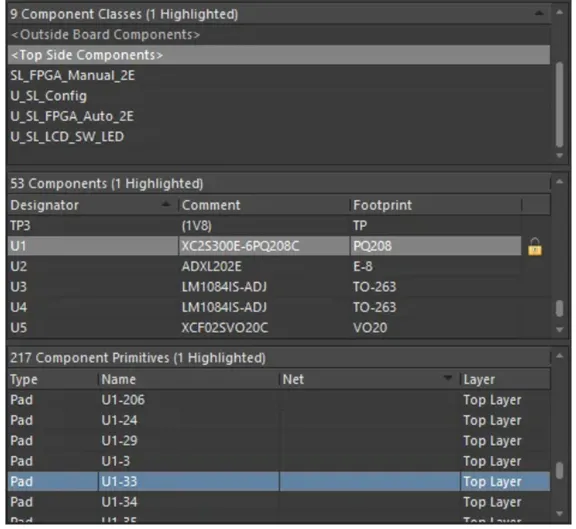
After importing from schematic, all components appear stacked in a rectangular ‘Room’ outline. Switch to 2D Layout mode if not already active (View → Switch to 2D Layout or press ‘2’ key). The Room feature keeps imported components together initially. To begin placement, you’ll need to spread components for easier access.
Use Tools → Component Placement → Arrange Components to automatically spread components across the workspace. Altium distributes components in a grid pattern outside your board outline. This gives you clear visibility of all parts and makes it easier to grab and position each component. Alternatively, manually drag components out of the Room one by one.
Moving and Rotating Components
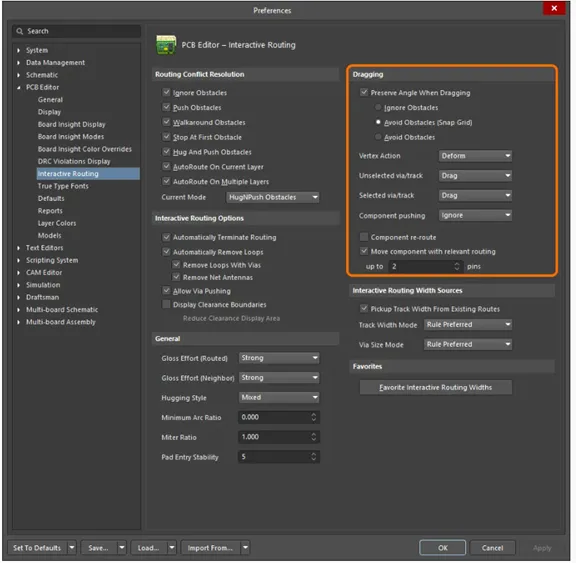
To move a component, simply click on it and drag it to the desired place. Components snap to the grid by default, making alignment easy. While dragging a component, press the SPACE bar to rotate it in 90-degree increments. Continue pressing SPACE until the component orientation matches your needs. Most rectangular components like ICs should be aligned with board edges, while components like capacitors might be rotated to optimize routing.
For precise positioning, press TAB while dragging a component to open its properties panel. Here you can enter exact X and Y coordinates, set rotation to any angle (not just 90-degree increments), and adjust other parameters. This is particularly useful when placing components symmetrically or at specific measured distances.
Use View → Grids → Snap to Grid to toggle grid snapping. Temporarily disable snapping when you need fractional positioning, then re-enable for general placement work. Align multiple components horizontally or vertically using Edit → Align → Align Left/Right/Top/Bottom after selecting the components while holding Shift.
Designator and Silkscreen Adjustment
Each component has a designator (R1, C1, U1, etc.) that appears on the silkscreen layer. These text labels are essential for board assembly and troubleshooting but can clutter your layout if not positioned properly. Click and drag designators to move them independently of their components. Position designators in locations where they’re readable but don’t overlap with pads, traces, or other components.
Designators belong to the Top Overlay layer (or Bottom Overlay for components on the bottom). Ensure all designators are visible and properly oriented – horizontal text is easiest to read. If a board area becomes too crowded, consider moving some designators to the bottom silkscreen layer, though this makes assembly verification slightly more complex.
Check designator font size (typically 1mm to 1.5mm height) for readability. Very small text (below 0.8mm) may be difficult to print clearly. Very large text wastes board space. Use View → Show → Designators to toggle designator visibility when you need an uncluttered view of your layout.
Final Component Arrangement
For our voltage regulator circuit, the optimized placement positions the LM7805 IC in the center of the board for thermal distribution. Input capacitors (C1, C2) are placed immediately adjacent to the IC’s input pin (pin 1), minimizing the high-frequency current loop. Output capacitors (C3, C4) are positioned near the IC’s output pin (pin 3) for the same reason.
The input connector (J1) is on the left board edge, output connector (J2) on the right edge. LED indicator components (LED1, R1) are positioned near the output section. The ground connections for all components form a natural return path, which we’ll connect using ground planes rather than individual traces in the next sections.
Before proceeding to routing, walk through these checks: All components are within the board outline; functionally related components are grouped; signal flow is logical; ratsnest lines show minimal crossing; all designators are readable and positioned appropriately. Making placement changes after routing is time-consuming and frustrating investing time now in optimal placement.
PCB Routing – Connecting Components
Routing creates copper traces that electrically connect component pads according to your schematic. This is where your circuit design becomes physical reality. Altium provides powerful interactive routing tools that balance manual control with intelligent assistance.
Understanding Routing Layers
Our 2-layer board has two copper routing layers: Top Layer (typically shown in red) and Bottom Layer (typically shown in blue). Press the + key during routing to switch from Top to Bottom layer; press – to switch from Bottom to Top. Altium places a via automatically at the switchover point.
Manual Routing Basics
Interactive routing is accessed through Route → Interactive Routing or by pressing Ctrl+W. Click on any unrouted pad to start routing from that point. Press SPACE during routing to cycle through routing modes: 90-degree angles, 45-degree angles, and any-angle routing. For professional boards, use 45-degree routing exclusively.
Routing Power and Ground Traces
Power distribution traces carry higher currents and require wider traces. Route these first, using trace widths of 0.8mm to 1.0mm. Press TAB while routing to open properties and modify the width value.
Creating Ground Plane (Copper Pour)
A ground plane is a large area of copper connected to ground, providing a low impedance return path and reducing EMI. Rather than routing individual ground traces, we create a copper pour that automatically connects all ground pads.
Defining Ground Polygon
Access polygon pour through Place → Polygon Pour or press P then G. Click around your board perimeter to define the fill area. Double-click to complete the polygon and open the properties dialog.
Configuring Polygon Properties
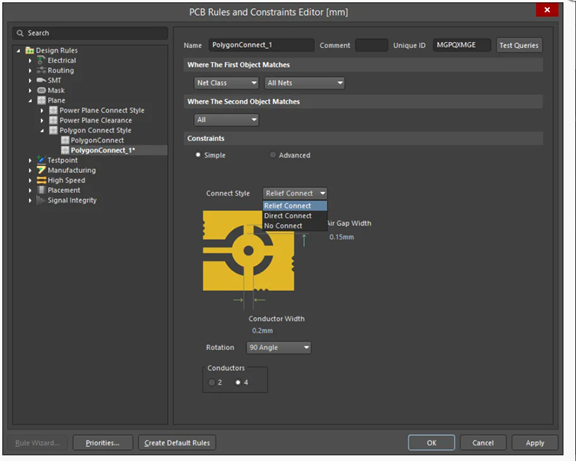
Set Net to ‘GND’ to assign this polygon to ground. Set Layer to ‘Top Layer’. Select ‘Relief Connect’ for Connection Style to create thermal relief connections essential for soldering. Set Clearance to 0.2mm.
Pouring Copper
Right-click the polygon outline and select Polygon Actions → Repour All. The ground plane fills available board area, avoiding incompatible objects while connecting to all ground pads.
Connecting Ground Planes with Vias
Place stitching vias to electrically connect top and bottom ground planes. Position vias at regular intervals (every 10-20mm) around the board, particularly near IC ground pins.
Design Rule Check (DRC) and Verification
Design Rule Check identifies violations before manufacturing. Never send a board to manufacturing without achieving zero DRC errors.
Running Design Rule Check
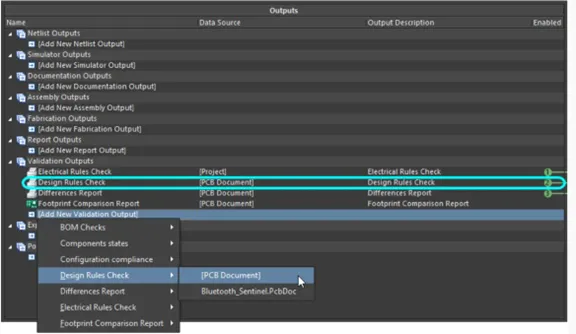
Access DRC through Tools → Design Rule Check. Ensure all categories are enabled. Click ‘Run Design Rule Check’ to begin verification.
Reviewing DRC Violations
The Messages panel displays all violations. Click on any violation to zoom to the problem location with highlighted markers.
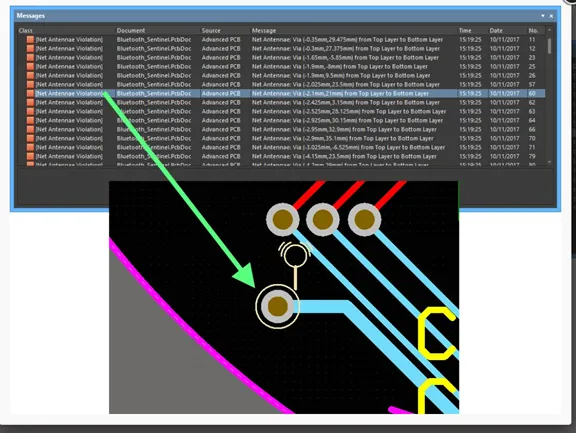
Fixing Common Violations
Fix clearance violations by moving traces. Fix width violations by adjusting trace width properties. Complete all unrouted connections. Adjust via placement to resolve via violations.
Achieving Zero DRC Errors
Continuously fix violations and re-run DRC until the Messages panel shows zero errors. Verify all nets are routed with no rats nest lines remaining.
Adding Final Touches and Documentation
Adding Mounting Holes
Place mounting holes at board corners using Place → Pad. For M3 screws, use 3.2mm hole diameter. Position holes at least 3-5mm from board edges.
Silkscreen Text and Information
Add identifying information using Place → String on Top Overlay layer. Include board name, revision, date, and specifications. Ensure text is readable (minimum 1mm height) and doesn’t overlap pads.
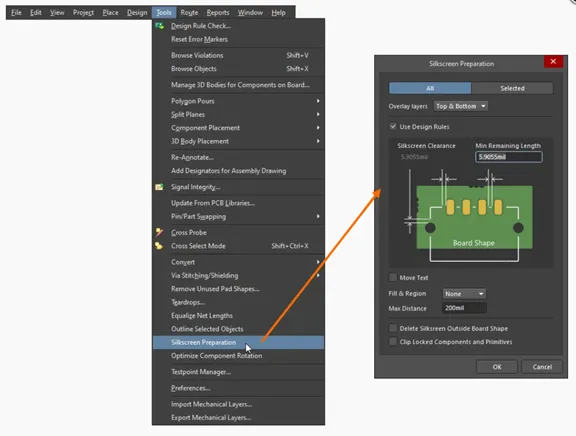
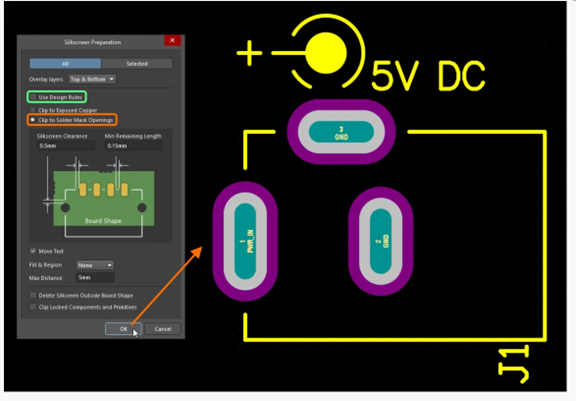
Board Edge and Dimension Markers
Add dimension markers using Place → Dimension → Linear Dimension on Mechanical 1 layer. This helps verify board size and assists enclosure design.
Verifying Silkscreen Clearance
Verify no silkscreen overlaps pads using View → Connections → Show Pads. Move any conflicting text to clear areas.
3D Visualization and Review
3D View Configuration Settings
Both the 2D and 3D view modes are organized in the View Configuration panel. To display the panel: press the L shortcut; use the Panels button at the bottom right of the software; or select the View » Panels » View Configuration menu item. When you switch to 3D Layout mode, further options to control the presentation of the board in 3D become available on the View Options tab of the View Configuration panel.
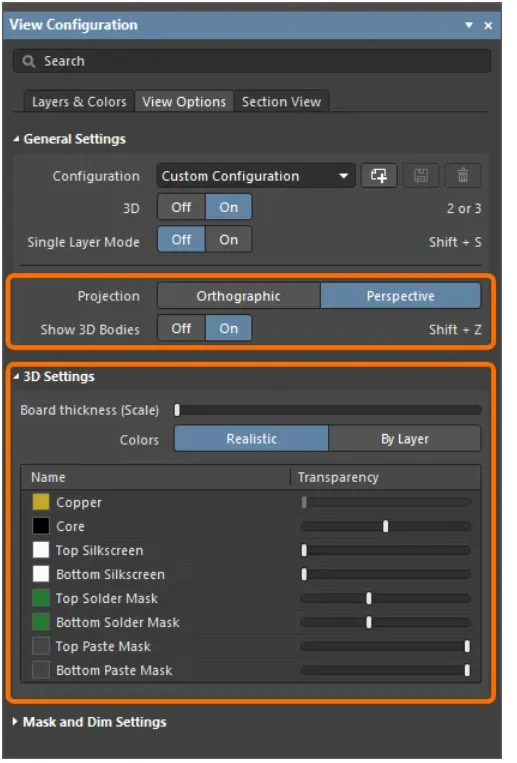
Switching to 3D View
Press ‘3’ or select View → Switch to 3D. Use mouse to rotate (left-click drag), pan (right-click drag), and zoom (scroll wheel) to examine from any angle.
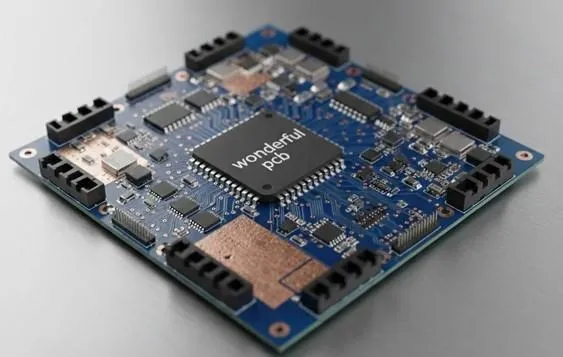
Checking Component Heights and Clearances
Verify component clearances in 3D view. Ensure tall components don’t interfere. Check that design fits in intended enclosure by measuring maximum board height.
3D Export Options
Export 3D model using File → Export → STEP for mechanical CAD software. Mechanical engineers use these exports for enclosure design and fitment verification.
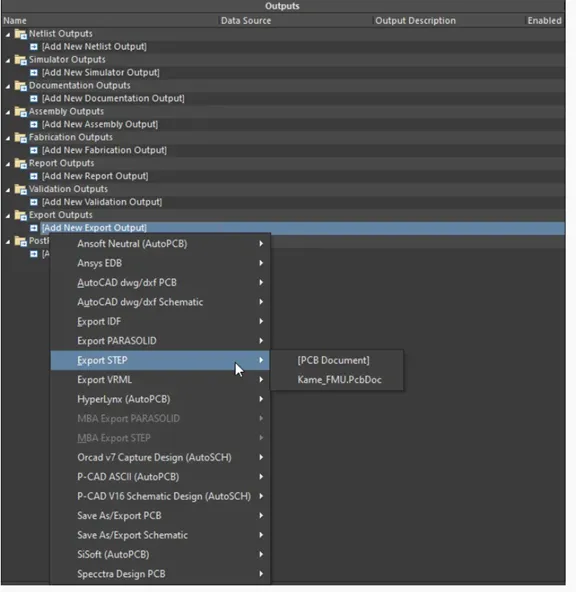
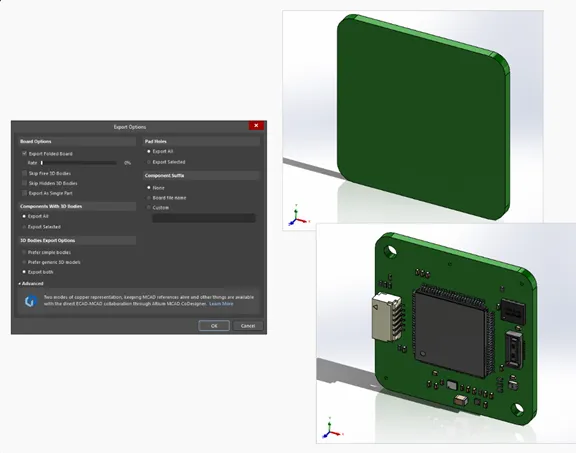
The Export Options dialog, accessed by double-clicking an added STEP export output or launching the File » Export » STEP 3D command, provides a range of selections, including options to determine which board objects will be included in the generated file.
Final Checks Before Manufacturing
Complete Design Checklist
Verify each item before generating manufacturing files:
- All components placed logically
- All nets routed, zero ratsnest
- Ground planes on both layers with stitching vias
- DRC passed with 0 errors
- Silkscreen designators readable
- Mounting holes placed properly
- Board dimensions correct
- 3D view verified
Generating Manufacturing Files
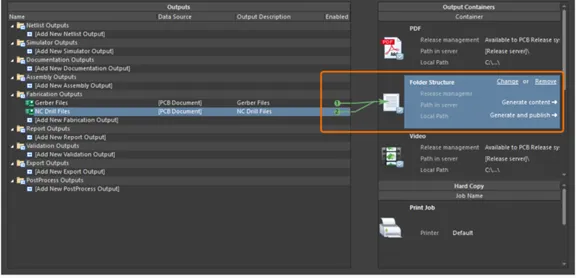
Generate Gerber files through File → Fabrication Outputs → Gerber Files and NC Drill files through File → Fabrication Outputs → NC Drill Files. Consult your manufacturer for specific requirements.
Saving and Backing Up Project
Save all files with Ctrl+Shift+S. Create complete project archive using Project → Archive Project for backups or collaboration.
Conclusion
Congratulations on completing this comprehensive PCB layout tutorial! You’ve learned the complete workflow from schematic import through manufacturing preparation. These fundamental skills, strategic placement, professional routing, ground plane implementation, and thorough verification form the basics of expert PCB design. Continue developing your skills by designing varied circuits. Study professional designs, join PCB communities, and review your manufactured boards to learn from successes and mistakes.
Thank you for following this tutorial. Your next step: design your own board from start to finish, applying everything you’ve learned. Good luck with your PCB design journey!