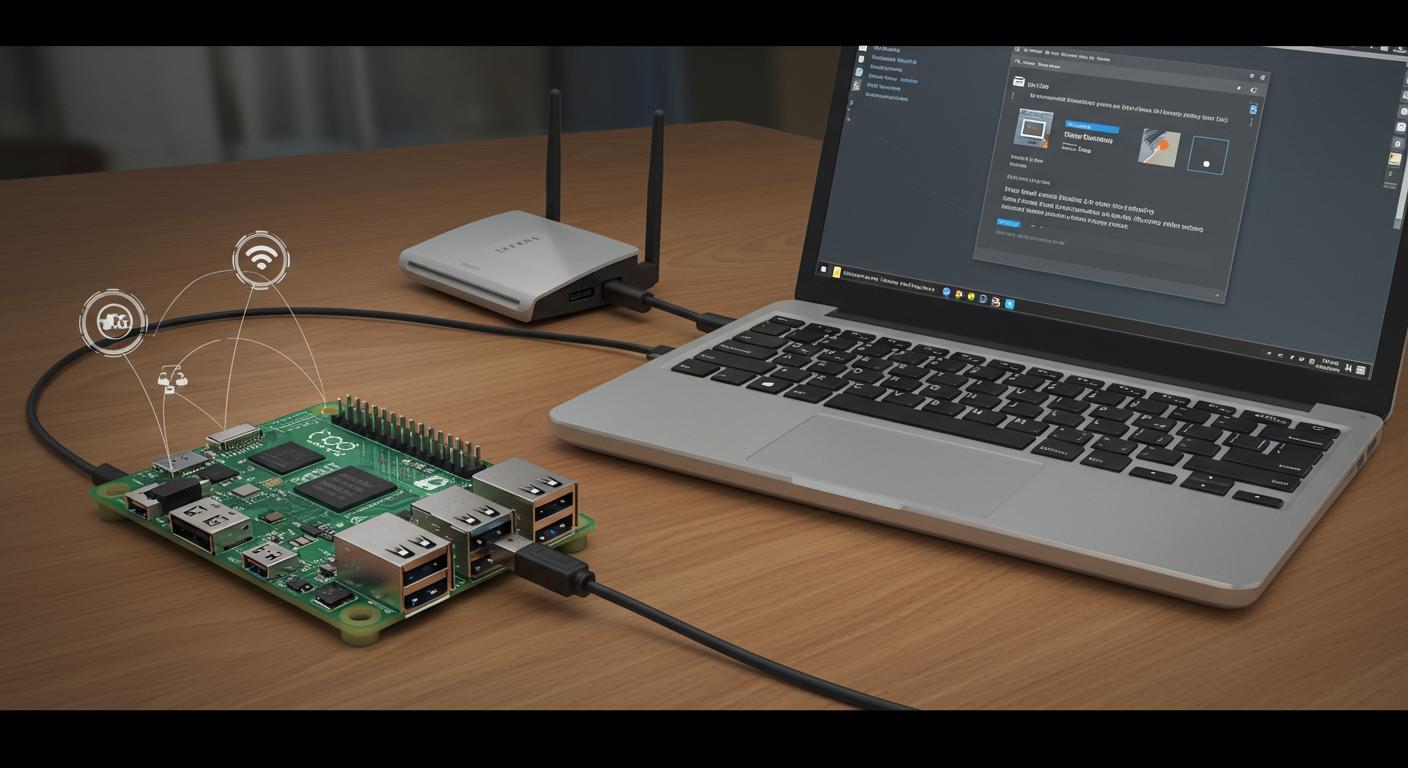
You want to get your raspberry pi zero online without any hassle. Plug in a usb cable and skip the need for extra gear or a monitor. This tutorial shows you how easy it is to use the Raspberry Pi Zero USB Ethernet gadget setup.
No keyboard, no screen—just your PC and a tiny Pi working together.
Requirements for Raspberry Pi Zero Setup
Hardware Needed
You don’t need much to get started with this tutorial. Grab your raspberry pi zero and a microSD card (at least 8GB works best). You’ll also need a good quality usb cable—make sure it’s a data cable, not just for charging. Your Windows PC will power the Pi, so you don’t need a separate power supply. The Pi Zero usually draws less than 1 amp, so a USB3 port on your computer is perfect. If you want to add extras later, like a camera or HDMI, remember those can use more power.
Tip: Always use a USB3 socket if you can. It supports up to 3A, which keeps your Pi happy even with extra gadgets.
Software Needed
Let’s talk about the software you’ll need for a smooth setup. First, download Raspbian Lite—it’s lightweight and perfect for headless use. You’ll need Balena Etcher to flash the operating system onto your SD card. Before flashing, use SD Memory Card Formatter to wipe the card clean. For connecting to your Pi, grab PuTTY for SSH access and Bonjour Print Services so you can find your Pi by name on the network. If you want to back up your SD card, Win32 Disk Imager is handy.
Here’s a quick checklist:
Raspbian Lite OS
Balena Etcher
SD Memory Card Formatter
PuTTY
Bonjour Print Services
Win32 Disk Imager (optional)
Workspace Prep
Set up your workspace before you start. Plug your Pi Zero into your PC using the usb cable. Open Network Connections on your computer. Right-click your main internet connection and choose Properties. In the Sharing tab, enable “Allow other network users to connect through this computer’s Internet connection.” Pick the USB Ethernet/RNDIS Gadget from the dropdown. Wait a moment for your Pi to get an IP address from DHCP.
Note: This step lets your Pi use your PC’s internet, so you can finish the setup without extra screens or keyboards.
Raspberry Pi Zero USB Ethernet Gadget Setup
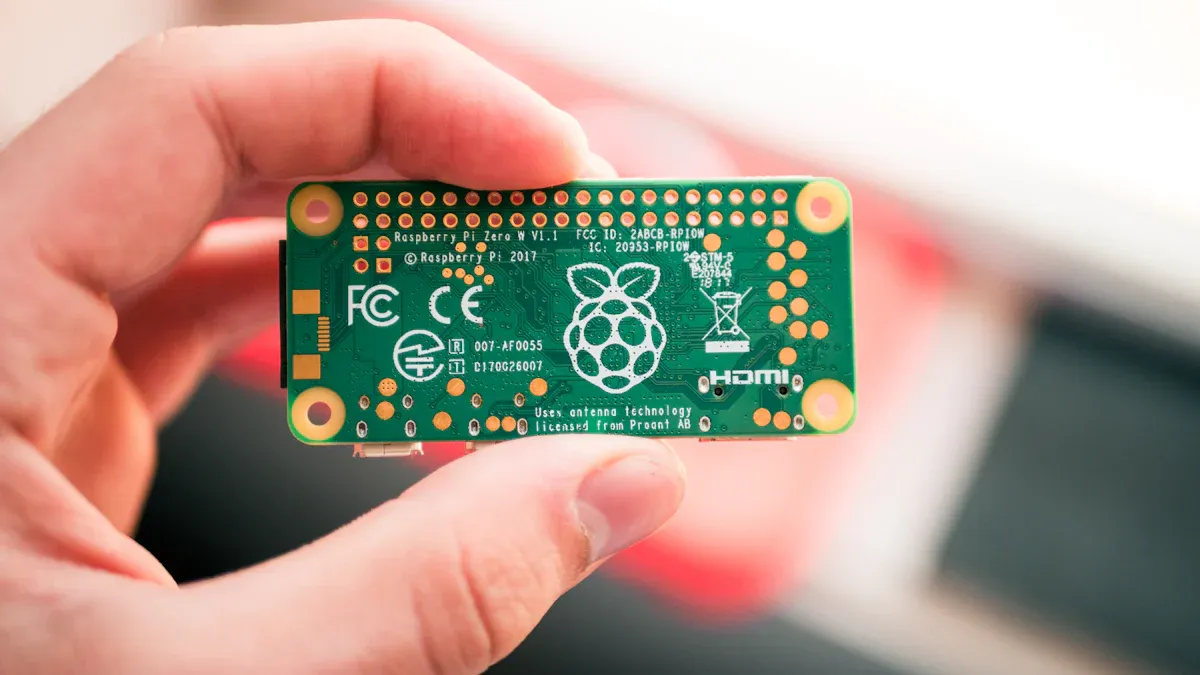
Ready to dive into the core of this tutorial? You’re about to turn your raspberry pi zero into a usb gadget that acts like an ethernet device. This setup lets you connect to your pi zero with just a usb cable and share your PC’s internet. Let’s break down each step so you can follow along easily.
Flash Raspbian
You need the right operating system for the raspberry pi zero usb ethernet gadget setup. Bullseye Lite works best, but Bullseye (full) is also fine. Older versions may not support the ethernet gadget feature. Here’s a quick look at which Raspbian versions work:
Raspbian Version | Compatibility |
|---|---|
Jessie (full) | Supported |
Jessie (lite) | Possibly supported (untested) |
Versions before 2016-05-10 | Not supported (requires update) |
Follow these steps to flash Raspbian onto your SD card:
Download the latest Raspberry Pi OS (Bullseye Lite recommended).
Use SD Memory Card Formatter to clean your SD card.
Open Balena Etcher and select the Raspbian image.
Flash the image to your SD card.
Wait for the process to finish. Remove the card safely.
Tip: Always eject your SD card using the “Safely Remove Hardware” option. This helps prevent data loss or corruption.
Many users have seen SD cards fail, even top brands. If you shut down your pi without using the proper command, you risk corrupting your card. Always power off your pi with sudo shutdown -h now before unplugging.
Edit Config Files
Now you need to tweak two files for the raspberry pi zero usb ethernet gadget setup. These changes turn your pi into a usb gadget that acts like an ethernet device.
Here’s what to do:
File | Configuration Change |
|---|---|
/boot/config.txt | Add this line at the end: |
/boot/cmdline.txt | After |
Insert your SD card into your computer.
Open the “boot” partition. Find
config.txtand adddtoverlay=dwc2at the bottom.Open
cmdline.txt. Afterrootwait, add a space and paste the modules-load line above.Save both files. Don’t add extra line breaks or change other settings.
Note: Editing these files is key for the usb gadget mode. If you skip this, your raspberry pi zero won’t show up as an ethernet device.
Connect to PC
You’re almost done with the raspberry pi zero usb ethernet gadget setup. Now it’s time to connect to your pi zero and finish the setup.
Plug the SD card into your raspberry pi zero.
Use a microUSB cable to connect the pi’s “USB” port (not “PWR IN”) to your Windows PC.
Wait for your computer to detect a new network device. It should show up as “USB Ethernet/RNDIS Gadget.”
Your pi will boot up and act as a usb gadget. You’ll see a new ethernet connection in your network settings.
Enable SSH by placing an empty file named
ssh(no extension) in the boot partition before you plug in the SD card. This lets you access your pi atraspberrypi.local.
🚦 If you don’t see the new network device, check your cable. Some microUSB cables only charge and don’t transfer data.
You’ve finished the main setup steps. Your raspberry pi zero now works as a usb ethernet gadget. You can connect to your pi zero, share internet, and control it—all through one cable.
Windows Setup and Driver Install
Getting your Raspberry Pi Zero online through your Windows PC is almost done! This part of the tutorial will help you set up the right tools and make sure your computer talks to your Pi over usb. You’ll need to install some software and check that your system recognizes the Pi as a network device using rndis drivers.
Bonjour and PuTTY
First, you need Bonjour and PuTTY. Bonjour helps your computer find your Pi on the network by its name. Without it, you might have trouble connecting. Download and install Bonjour on your Windows PC. Next, grab PuTTY. This program lets you open an SSH session to your Pi. Once you have both, you can connect by typing ssh [email protected] in PuTTY. The default username is “pi.” This step makes it easy to control your Pi without a screen or keyboard.
Tip: Bonjour is a must for finding your Pi by name. PuTTY gives you a simple way to log in and finish the setup.
RNDIS Driver
Now, let’s get your Pi Zero working as a usb ethernet gadget. Windows 10 does not always have the right rndis drivers built in. You need to install a special driver called linux.inf. This driver is unsigned, so you may need to disable signed driver enforcement before installing. Here’s what you do:
Plug your usb cable into the Pi’s USB port (not the power port).
Connect the other end to your PC. Wait for the chime.
Open Device Manager. Look under Network Adapters for “USB Ethernet/RNDIS Gadget.”
If you don’t see it, check under Ports for “USB Serial Port.” Unplug the usb cable and see if the entry disappears.
If needed, download the Acer USB Ethernet/RNDIS Gadget driver. Extract it.
In Device Manager, choose Add Legacy Hardware. Pick Network Adapters, then Have Disk, and select the g_rndis.inf file.
Install the driver. You may need to reboot.
After reboot, check Windows Update for optional driver updates. Install the Acer USB Ethernet driver if it appears.
Plug in your Pi again. Listen for the chime and check Device Manager.
Note: You might need to repeat these steps if Windows does not recognize the device right away. Rndis drivers can be tricky, but patience pays off!
Device Check
You want to make sure your Pi shows up as a network device. Open Device Manager and look for “RNDIS Ethernet Gadget” under Network Adapters. If you see it, your rndis drivers are working! If you spot an Unknown Device, unplug your Pi. If the entry disappears, your system sees the hardware but needs the right rndis driver. Try the steps above again.
If you still have trouble, double-check your usb cable and make sure you edited the config files correctly. Sometimes, a different usb port helps.
You’ve now set up your Windows PC to talk to your Raspberry Pi Zero using rndis. This step is key for sharing your internet connection and finishing the tutorial.
Internet Sharing and Verification
SSH Access
You’re almost ready to enjoy shared internet access on your raspberry pi zero. First, let’s check if you can connect to your Pi using SSH. Open PuTTY on your Windows PC. In the Host Name box, type raspberrypi.local and click Open. If you see a login prompt, enter pi as the username and raspberry as the password. This means your usb connection is working and your Pi is online. If you get an error, double-check your usb cable and make sure you enabled SSH by adding the empty ssh file to the boot partition.
Tip: If you can’t connect, try unplugging and plugging the usb cable again. Sometimes Windows needs a moment to refresh network connections.
Enable Sharing
Now it’s time to set up internet sharing so your Pi can get online. Follow these steps:
Open Network and Sharing Center on your Windows PC.
Click Change Adapter Settings.
Right-click your main internet connection and select Properties.
Go to the Sharing tab.
Check the box to allow other network users to connect through this computer’s internet connection.
In the dropdown, pick the usb ethernet gadget (it might say “PiZero” or “RNDIS”).
Click OK and close the windows.
This process lets your Pi use your PC’s shared internet access. If you don’t see the usb ethernet gadget, unplug and reconnect your Pi, then check network connections again.
Test Connection
Let’s make sure your Pi can reach the internet. Go back to your SSH session. Type this command:
ping google.com
If you see replies, your shared internet access works! Your Pi now uses your PC’s internet through the usb cable. If you don’t get a reply, restart your Pi with:
sudo reboot
Then try pinging again. Sometimes, network connections need a fresh start.
Note: The usb ethernet gadget often gives you faster and more stable connections than Wi-Fi. Many users report speeds over 100 Mbits/sec, while Wi-Fi can drop to just a few Mbits/sec.
Optional Remote Desktop
Want to control your Pi with a full desktop? You can set up remote desktop access. Here are some easy options:
Enable VNC on your Pi. Use the Raspberry Pi Configuration tool or run
sudo raspi-configand turn on VNC.Install RealVNC server on your Pi and set a strong password.
On your Windows PC, download VNC Viewer. Connect using your Pi’s IP address from network connections.
For extra security, change your default password and consider setting up SSH keys.
Remote desktop lets you use your Pi just like a regular computer, all over your usb connection.
Troubleshooting Tips
Connection Issues
Sometimes things do not work right away. If your Raspberry Pi Zero does not show up as a USB Ethernet gadget, you might see these problems:
Windows may think your Pi is just a USB hub, not a network device.
The correct driver might not load, especially after new Windows updates.
Windows might change how it finds USB devices, so your Pi may not get noticed.
If this happens, unplug your Pi and try another USB port. Try a different cable if you have one. Make sure you changed the config files exactly like the tutorial says. If nothing works, restart your computer. Sometimes, waiting and starting over helps fix the problem.
Tip: Always check for “RNDIS Ethernet Gadget” in Device Manager. If you see something else, Windows may have picked the wrong driver.
Persistent Setup
You want your Pi Zero to connect every time you plug it in. You can make your Pi remember its network settings. Here are some files you might need to change:
File | Configuration Details |
|---|---|
/etc/network/interfaces | auto lo |
/etc/dhcpcd.conf | interface eth0 static ip_address=192.168.1.250/16 |
Change these files so your Pi always gets the same IP address. This helps your Pi connect to your network every time. You will not get surprises when you reboot or use a new computer.
More Resources
If you get stuck, you are not alone. Many people have shared their stories online. You can find help in these places:
Community forums where people talk about Raspberry Pi Zero USB Ethernet gadget setups.
Threads where users share which microSD cards and Raspbian images worked best.
Posts with tips and answers for common problems, like driver or network issues.
Reading what others did can save you time. You might find a fix for your problem. The Raspberry Pi community is friendly and ready to help.
This tutorial shows you how to make your Raspberry Pi Zero work as a USB Ethernet gadget. Here are some reasons you will like this:
You can get on the network even if your WiFi does not work.
Your Pi gives you another firewall for better safety.
You can use the network in places where there is no WiFi.
Try these fun upgrades to make things even better:
Enhancement Type | Description |
|---|---|
Plug-and-play | Just use a USB cable for quick setup. |
Headless operation | Run your Pi without a screen or keyboard. |
Low latency | Get fast and smooth data over USB. |
Looking for more ideas? Many people use their Pi Zero as a small USB Ethernet adapter or as a storage tool.
The community likes to share tips and ways to fix problems. Ask questions or tell your story to help others!
FAQ
Can I use any USB cable for this setup?
Not all USB cables work. You need a data cable, not just a charging cable. If your Pi does not show up on your PC, try another cable. Some cheap cables only charge and do not transfer data.
What if my Raspberry Pi Zero does not show up in Device Manager?
First, unplug your Pi and plug it into a different USB port. Try restarting your computer. Double-check your config files. If you still have trouble, use another cable or SD card. Sometimes, Windows needs a moment to detect new devices.
Do I need to install extra software on my Pi for internet sharing?
No, you do not need to install extra software. The steps in this tutorial set up everything you need. Just make sure you edit the config files and enable SSH before you connect your Pi to your PC.
Can I use this method with Raspberry Pi Zero W or Zero 2 W?
Yes, you can use this method with Pi Zero W or Zero 2 W. These models have built-in Wi-Fi, but the USB Ethernet gadget setup still works. You get a stable connection and can use Wi-Fi for other projects.
How do I know if my Pi is online?
Open PuTTY and try to connect to raspberrypi.local. If you see a login prompt, your Pi is online. You can also ping google.com from the Pi’s terminal to check internet access.