You might need to unlock microcontroller devices if you cannot access them or if they are protected. Some common problems are hardware faults, like short circuits. Programming errors can also happen, such as ‘flash write failed’ or ‘flash memory write protected’. Sometimes, a hardfault in your code can lock the core. Always check your microcontroller model first. Look at the official datasheet before you try to unlock it. Using the wrong way can make you lose data or even break the device forever.
Key Takeaways
Find out your microcontroller’s model and who made it before you try to unlock it. This helps you not make mistakes and lets you pick the right tools.
Always look at the official datasheet for your microcontroller. It has key facts about security and unlocking steps.
Use the correct hardware programmer and software that fit your microcontroller. This helps you connect and unlock it the right way.
Follow each step slowly when you unlock your microcontroller. Check your wires, open the right software, and make sure it is unlocked so you do not lose data.
Know the risks of unlocking. It can delete all your data and might cancel your warranty. Always save your work and know the rules before you start.
Identify Your Microcontroller
Find Model and Manufacturer
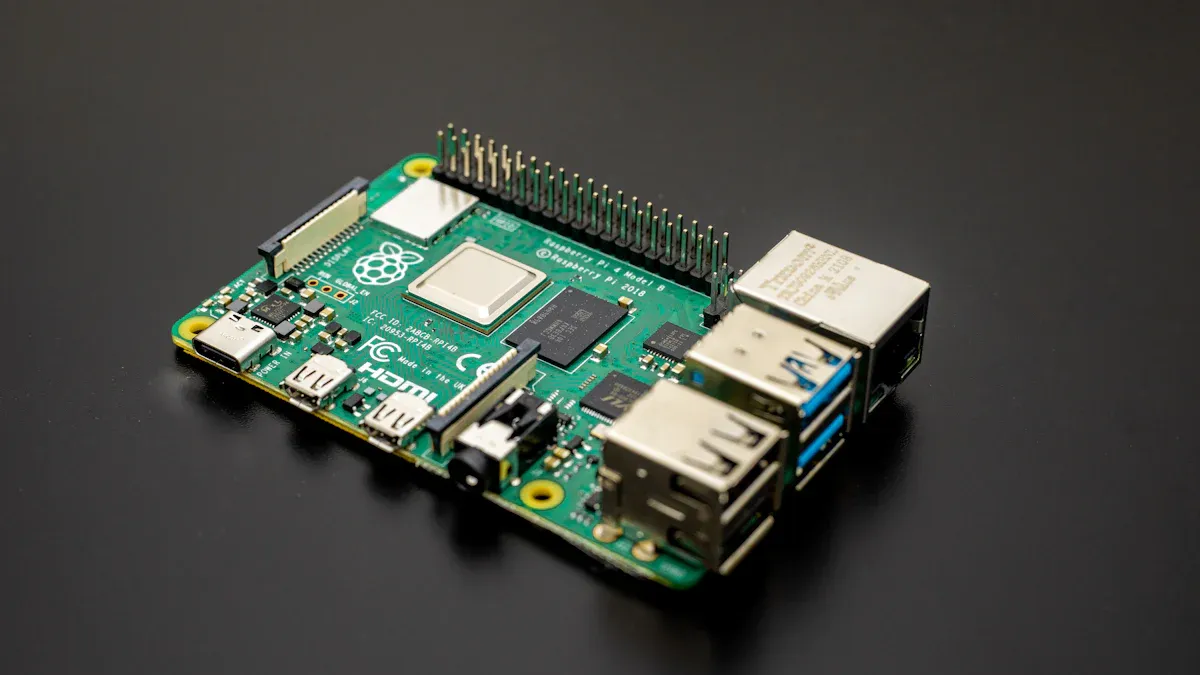
You must know your microcontroller before unlocking it. Check the chip for the model number and manufacturer name. You can also look in your device’s manual. This helps you avoid errors and use the right tools. Using the wrong way can break your microcontroller or erase data.
Review Datasheet for Lock Features
Once you find the model, look for the official datasheet or guide. These papers tell you about lock and unlock features. You will learn about security bits, memory protection, and special commands. Some microcontrollers have advanced security like ARM TrustZone. TrustZone makes a safe area for important data and software. It keeps secure and non-secure parts apart. This helps stop unwanted access. In Cortex-M microcontrollers, TrustZone also makes IoT devices work better. It changes states faster and saves power. Always read the datasheet closely before you try to unlock anything.
Common microcontroller
Many companies make microcontrollers that people use a lot. Here is a table with some top manufacturers and their popular models:
Manufacturer | Popular Models |
|---|---|
STMicroelectronics | STM32F4, STM32L4, STM32H7 |
Texas Instruments | |
Microchip Technology | PIC16F877A, PIC32MX, AVR Series |
NXP Semiconductors | LPC1768 |
Renesas Electronics | RX Series |
Tip: Always check your microcontroller’s model and read the datasheet before you unlock it. This can help you avoid mistakes and save time.
Prepare Tools for Unlocking
You need the right tools before you unlock microcontroller devices. These tools help you connect to the chip. They also let you send commands to unlock it. Make sure your tools match your microcontroller’s brand and model.
Hardware (Programmer/Debugger)
A hardware programmer or debugger is needed to talk to your microcontroller. This device connects your computer to the chip. It lets you send commands and get data back. Here are some popular choices:
Segger J-Link: Works with many ARM Cortex-M microcontrollers. It is fast and works well.
Atmel-ICE: Good for Atmel AVR and SAM devices.
ST-Link: Made for STMicroelectronics STM32 chips.
PICkit: Used for Microchip PIC and dsPIC microcontrollers.
TI MSP-FET: Best for Texas Instruments MSP430 series.
Tip: Always check if your programmer works with your microcontroller before you buy or use it.
Software Utilities
You also need software to control the programmer and send unlock commands. Each brand has its own software. Some programs work with more than one brand. Here are some common choices:
Software Utility | Supported Brands/Chips |
|---|---|
STM32CubeProgrammer | STMicroelectronics STM32 |
avrdude | Atmel AVR, some Microchip |
MPLAB X IPE | Microchip PIC, dsPIC, AVR |
Simplicity Studio | Silicon Labs EFM32, EFR32 |
OpenOCD | Many ARM Cortex-M devices |
Pick the software that matches your hardware and microcontroller. Some tools let you unlock microcontroller chips with just a few clicks. Others need you to type special commands.
Note: Always read the user guide for your hardware and software. This helps you avoid mistakes and keeps your device safe.
Unlock Microcontroller Steps
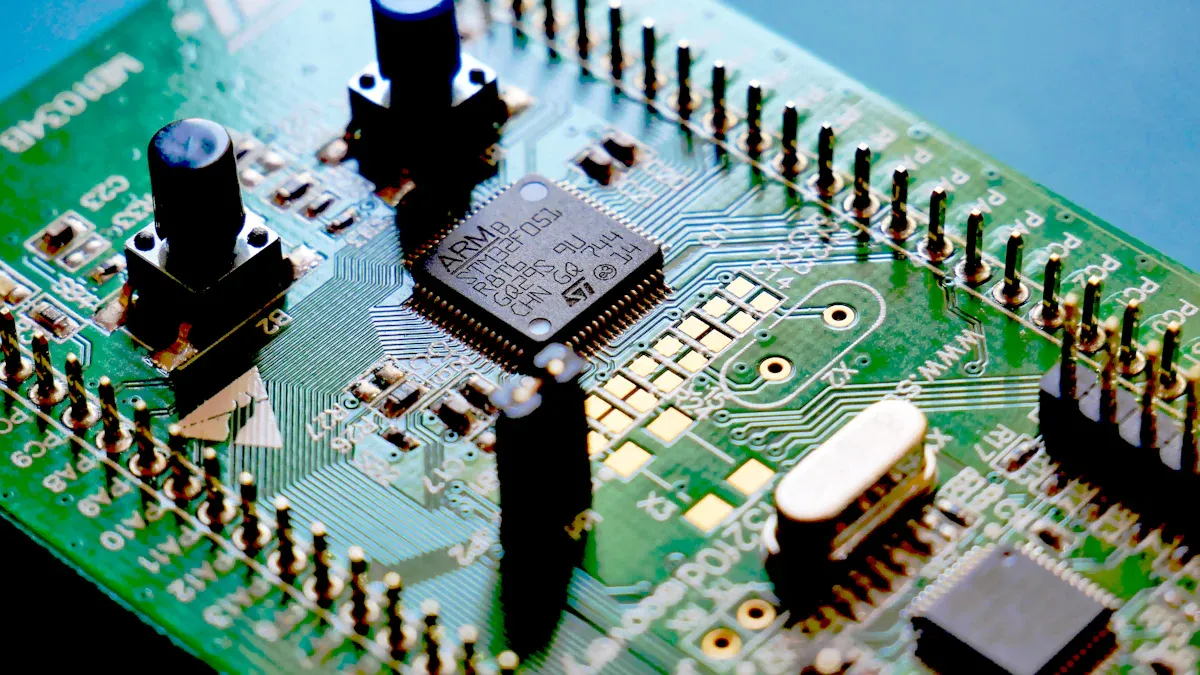
Unlocking a microcontroller needs you to be careful. You must follow each step so you do not make mistakes. This guide will help you unlock microcontroller devices safely.
Connect Device to Computer
Start by connecting your microcontroller to your computer. Use the right programmer or debugger for your chip. Plug the programmer into your computer’s USB port. Attach the cable to the microcontroller’s debug or programming pins. Make sure the wires are tight and match the datasheet pinout.
Tip: Always check the wires before turning on the power. Bad connections can hurt your microcontroller.
Launch Unlock Software
Open the software that works with your programmer and microcontroller. You might use STM32CubeProgrammer, MPLAB X IPE, or another tool. Pick your device model in the software. If you see a list, choose your microcontroller.
Some software asks you to pick a communication protocol. You may see choices like SWD, JTAG, or SPI. Choose the one that matches your hardware.
Execute Unlock or Erase Command
Now send the unlock command. Most microcontrollers use special commands to unlock or erase protection. You may see choices like “chip erase,” “ALeRASE,” or “debug unlock.” These commands remove security bits and let you use the device.
Before you unlock microcontroller chips, save your data if you can. Unlocking often erases all memory, including your program and settings. Some software lets you read and save the flash memory before you erase it.
Here is an example command for STM32 devices using STM32CubeProgrammer:
STM32_Programmer_CLI -c port=SWD -e all
For Atmel AVR chips with avrdude, you might use:
avrdude -c usbtiny -p m328p -e
Note: The command you need depends on your microcontroller and software. Always look at the user guide for your device.
Confirm Unlock Success
After you run the unlock command, check if it worked. The software should show a message like “Erase successful” or “Device unlocked.” Try reading the memory or programming the chip to test it.
Some microcontrollers have status bits or flags that show if they are unlocked. You can find this in the datasheet. If you see errors, try again or check your wires.
Step | What to Check After Completion |
|---|---|
Connect Device | Power LED on programmer, stable wiring |
Launch Software | Device detected, correct model chosen |
Execute Command | Success message, no error shown |
Confirm Unlock | Able to read/write memory, status OK |
Warning: Unlocking can erase all data. You cannot get back lost programs unless you saved them. Always save your work before you unlock microcontroller devices.
Troubleshooting & Risks
Unlock Failure Solutions
You might have trouble unlocking microcontroller devices. Many things can make unlocking fail. The table below lists common reasons and what they mean:
Cause of Unlock Failure | Explanation |
|---|---|
Damage to the chip | Bad soldering or rough handling can hurt the chip. |
Changed physical behavior due to wear | Using the chip too much can change how it works. |
Improper application behavior | Wrong programming or odd inputs can lock the chip. |
A problem with the chip itself | Sometimes, the chip is broken from the factory or just stops working. |
If you get an error, check your wires and power first. Try using another cable or programmer. Make sure you use the right software and commands for your chip.
Recover from Errors
Sometimes, a failed unlock can “brick” your microcontroller. This means it will not work anymore. You can try these ways to fix it:
Use a chip erase tool, like Emergency Kinetis Device Recovery.
Try power glitching. Change the power quickly to reset the chip.
Use a fast debug probe, like SEGGER J-Link Plus or P&E Multilink Universal FX.
Run the J-Link recovery command if you use J-Link tools.
For STM32 chips, follow these steps:
Put the STM32 ST-LINK utility on your computer.
Find the debug pins: SYS_SWCLK, SYS_SWDIO, +3.3V, and GND.
Connect the ST-LINK/V2 programmer to your board.
Make a recovery image with a tool like
mtcdmcutool.exe.Use the ST-LINK utility to erase the chip.
Program the recovery file at address 0x08000000.
If you cannot fix your device, you may need a new one.
Data Loss and Legal Warnings
Unlocking a microcontroller can erase all your data. Always save your files before you start. Many chips have ways to protect your data, like password access and block-locking. These features stop others from reading or changing your data by mistake.
You also need to think about legal risks. Unlocking can void your warranty. Some devices have rules that say you cannot unlock them. Breaking these rules can get you in trouble.
Tip: Use cryptography to keep your data safe. Encrypt important files and use secure keys. This helps protect your information, even if someone unlocks your device.
Only unlock microcontroller devices if you have permission and know the risks.
Unlocking a microcontroller takes planning and the right steps. You need to do these things:
Look at your device and find out its model and if you are allowed to unlock it.
Check what kind of chip you have and how secure it is.
Pick the right hardware and software tools for unlocking.
Make sure you keep your data safe after you get it back.
When you unlock your device, you can make it work faster and save power. You also get more ways to use it. Always follow the official instructions and be careful to keep your device and data safe.
FAQ
What happens if you use the wrong tool to unlock microcontroller?
You could break your device or lose data. Always use the right tool for your microcontroller. Look at the datasheet before you begin.
Can you recover data after you unlock microcontroller?
Most of the time, you cannot get your data back after unlocking. Unlocking usually deletes everything in memory. Save your files before you start.
Is it legal to unlock microcontroller on any device?
You need to look at your local laws and device rules. Some devices do not let you unlock microcontroller. If you break these rules, you might lose your warranty or get into legal trouble.
Why does my microcontroller stay locked after following all steps?
Bad connection
Old software
Hardware problem
Check each thing. Try a new cable or programmer. Read the datasheet for more help.