If you want to get the most out of linux on the raspberry pi, you need to learn some basic commands. Simple commands like ls, cd, and mkdir help you move around and organize your files. When you use sudo, you get special powers to change important settings. Try commands often and use this guide as your cheat sheet.
Tip: Practice using Linux commands for Raspberry Pi every day. You will get faster and make fewer mistakes.
User Privileges
Regular vs. Root
Most of the time, you use your Raspberry Pi as a regular user. You can open files and run programs. You can also change your own settings. But you cannot change system files or add new software without special permission. This is when super user privileges are needed.
Here are the main differences between regular users and root users:
User Type | Permissions and Capabilities |
|---|---|
Regular User | Has limited permissions and cannot do admin tasks without ‘sudo’. |
Root User | Has full permissions and can change anything on the system. |
Super user privileges let you act like the root user. The root user can change any file and install software. On Raspberry Pi OS, root is turned off by default. This helps keep your device safe from mistakes and hackers. If you need super user privileges, you use the sudo command.
Note: Turning root back on is not a good idea. It is safer to use
sudofor admin tasks.
Remember these facts:
Root is off by default to protect your device.
Use
sudoto get super user privileges.Making a root password is risky and not needed for most people.
Using ‘sudo’
You use sudo when you need super user privileges for a command. This lets you install software, update your system, or change system settings. You type sudo before your command in the terminal.
For example, to update your Raspberry Pi, you type:
sudo apt-get update
This command gives you super user privileges for just that command. You do not stay as root after it finishes.
Some tasks that need sudo are:
Installing software
Changing system files
Restarting or shutting down the Pi
Tip: Only use
sudowhen you really need it. Using it too much can break your system.
Safety Tips for Privilege Management
Using sudo gives you a lot of power. You must be careful. If you use it wrong, you can harm your Raspberry Pi or make it unsafe.
Here are some risks:
Hackers can use super user privileges to change files or add malware.
Someone with super user privileges can hide what they did by changing logs.
On shared systems, one careless user with super user privileges can put everyone at risk.
Here are some security problems that have happened with sudo before:
Vulnerability | Description | Risk Level |
|---|---|---|
CVE-2025-32462 | A problem with input checking that lets users get more power | High |
CVE-2025-32463 | A problem with environment variables that lets users get root access | High |
To stay safe:
Only use
sudoif you trust the command.Never run scripts you do not know with super user privileges.
Keep your Raspberry Pi updated to fix security problems.
Callout: If you are not sure about a command, do not use
sudo. Ask someone for help or look up the command first.
Linux Commands for Raspberry Pi

Do you want your Raspberry Pi to work well? Learning important linux commands for raspberry pi helps keep it safe. These commands help your system stay healthy. You will use them a lot.
System Updates
Updating your Raspberry Pi is very important. You use apt to find new software and security fixes. If you skip updates, your Pi might slow down or get security problems. Here is what you should do:
Run apt update at least once a month. If your Pi uses the internet or handles private stuff, check for updates every week.
apt update finds new packages. apt upgrade installs them.
Updating your system often fixes problems and makes it faster. You also get new features.
Here is how you do it:
sudo apt update
sudo apt upgrade
If you forget to run apt, your Pi can get security risks. You also miss out on better speed and new features. Make apt part of your routine. This keeps your Pi safe and fast.
Tip: apt makes updating easy. Don’t wait too long to update!
Shutdown and Reboot
Always shut down or reboot your Raspberry Pi the right way. Using the correct linux commands for raspberry pi stops data loss and hardware trouble. Here are the best commands:
To shut down:
sudo shutdown -h now
orsudo haltTo reboot:
sudo shutdown -r now
orsudo reboot
Never unplug your Pi to turn it off. Use these linux commands for raspberry pi every time you power off or restart.
Configuration Tools
The raspi-config tool makes setup easy. You do not need to edit hard files. Just run:
sudo raspi-config
You will see a menu with choices. Here is what you can change:
Configuration Option | Description |
|---|---|
Change User Password | Lets you change the password for the ‘pi’ user. |
Network Options | Set hostname, Wi-Fi SSID, and password easily. |
Boot Options | Pick desktop or command line boot, and set network wait options. |
Internationalization Options | Change locale, timezone, and keyboard layout. |
Interfacing Options | Turn camera, SSH, and VNC on or off quickly. |
raspi-config saves time and helps you avoid mistakes. Try it when you set up your Raspberry Pi or want to change settings.
Note: raspi-config is one of the best linux commands for raspberry pi. It makes setup easy for beginners and experts.
File Management
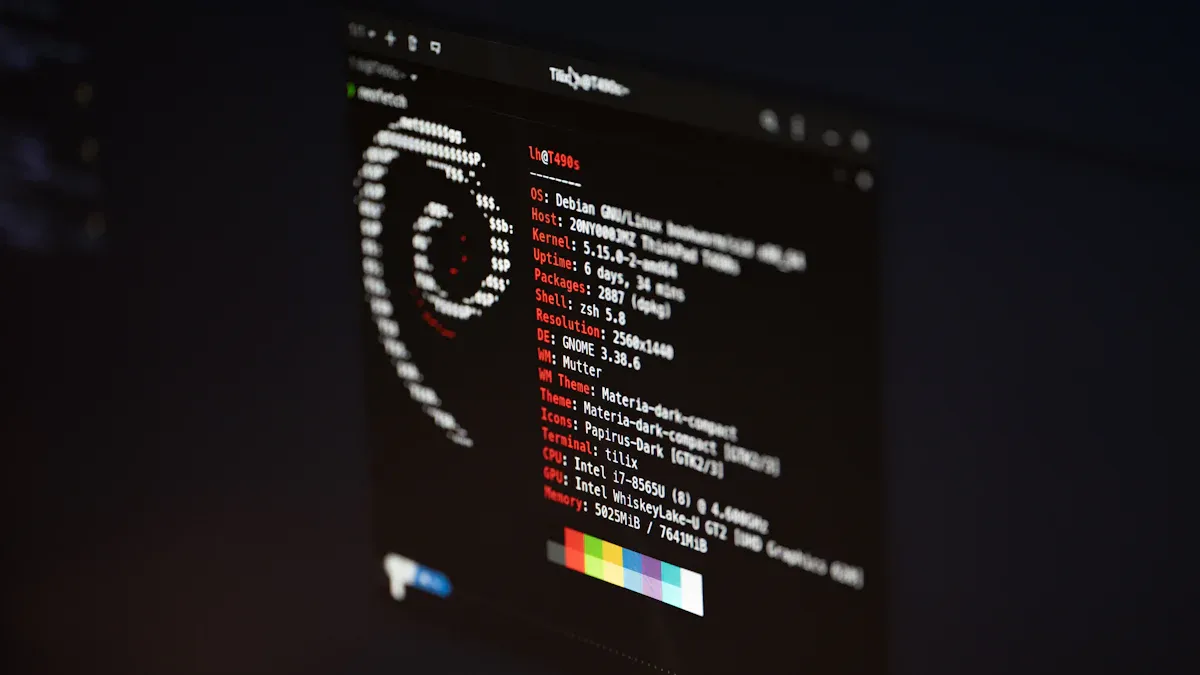
Managing files and folders on your Raspberry Pi feels easy once you know the right commands. You can move around, create new folders, copy files, and clean up your workspace. Let’s break down the basics so you can keep your projects organized.
Navigating Directories
You spend a lot of time moving between folders. The commands below help you find your way:
Command | Function | |||||||
|---|---|---|---|---|---|---|---|---|
cd
|
|
Try these in your terminal:
cd /home/pi/Documents
pwd
ls -l
Tip: Use
pwdif you ever get lost. It shows you where you are.
File Operations
You can create, copy, move, and delete files with just a few commands. Here’s a quick guide:
mkdir myfoldercreates a new folder.cp file1.txt myfolder/copies a file.mv file1.txt myfolder/moves or renames a file.rm file1.txtdeletes a file.rmdir myfolderremoves an empty folder.touch newfile.txtcreates a blank file.
These commands help you organize your project folders. You can back up files before making changes, move finished work to the right spot, and clean up old files to keep things tidy.
Editing Files
Sometimes you need to look at or change a file. You can use cat to view contents or nano to edit. Here’s how:
cat /boot/config.txt
nano /boot/config.txt
In nano, use CTRL+O to save, CTRL+X to exit, and CTRL+G for help. If you want to edit system files, add sudo before the command.
Note: Always save your work before you exit nano!
Finding Files
Searching for files or text saves you time. Use these commands:
Command | Description |
|---|---|
grep “text” filename | Finds text inside a file. |
ps -A | Lists all running processes. |
ps -A | grep nano | Finds if nano is running. |
Try grep when you need to find something fast. It works in any folder.
Callout: Good file management keeps your Raspberry Pi organized and makes your work easier.
Useful Raspberry Pi Commands
You want your Raspberry Pi to connect to the internet and talk to other devices. You need to know some useful raspberry pi commands for networking. These commands help you fix problems, check your Wi-Fi, download files, and scan your network.
Networking Basics
Start with the basics. You can check your network status and troubleshoot problems with these raspberry pi commands:
ifconfigshows your network interfaces and IP addresses.ip agives you more details about your network setup.ping www.google.comtests if your Pi can reach the internet.hostnamedisplays your device’s name and IP address.routeshows how your Pi sends data to other devices.
Here’s a quick table to help you remember:
Command | Purpose |
|---|---|
ifconfig | View and set network settings, check connection status. |
iwconfig | Manage wireless settings, like SSID and channel. |
Tip: If you can’t connect to a website, try
pingfirst. If it works, your network is fine.
Wi-Fi and Internet
You want to see which Wi-Fi networks are nearby. Use these commands:
iwlist wlan0 scanlists all Wi-Fi networks your Pi can find.iwconfiglets you change Wi-Fi settings, like which network to join.iw devshows your wireless devices.
If you need to scan for more details, tools like airodump-ng and tcpdump can help. You might need a USB Wi-Fi adapter for advanced scanning.
Callout: Always update your Pi before scanning networks. Run
sudo apt updateandsudo apt upgrade.
Downloading Files
You can grab files from the internet with wget. This command is simple and fast. For example:
wget https://www.raspberrypi.org/sample.txt
This downloads the file to your Pi. If you want to save a program or a picture, just use wget and the link.
Network Scanning
Want to see what devices are on your network? Try nmap. First, install it:
sudo apt update
sudo apt install -y nmap
Check if it works:
nmap --version
Scan your network:
nmap 192.168.0.150
Nmap finds devices, open ports, and running services. It helps you spot problems or check security.
Note: Use network scanning tools only on networks you own or have permission to scan.
These useful raspberry pi commands make networking easy. Try them out and see how much you can do with your Pi!
Raspberry Pi OS Commands
System Info
You want to know what’s happening inside your Raspberry Pi. The right raspberry pi os commands give you a clear picture. Try these:
freeshows how much memory you have and how much is in use. This helps with system management and keeps your Pi running smoothly.df -htells you how much disk space is left. You see which folders use the most space. Checking disk space often helps with management and stops problems before they start.
If you want more details, use cat /proc/version to see your OS version. You can also use lsusb to list USB devices. These raspberry pi os commands help you with system management and keep your Pi healthy.
Hardware Monitoring
Your Raspberry Pi works hard. You need to watch its temperature and performance. Here’s a table of commands that help with hardware monitoring and management:
Command | Description |
|---|---|
top | Shows live system resource usage, like Task Manager in Windows. |
htop | Gives a colorful, easy-to-read view of processes and resources. |
vcgencmd | Checks CPU temperature and clock speed. |
iostat | Monitors input/output speeds for devices and partitions. |
Use these raspberry pi os commands to keep your Pi cool and fast. If you see high numbers, close some programs or check your cooling.
Installed Packages
You want to know what software is on your Pi. Good package management helps you avoid clutter and keeps your system fast. Here’s how you list installed packages:
Type
apt list --installedin the terminal.Try
dpkg --get-selectionsfor another view.If you like using a mouse, install Synaptic and check packages in the desktop interface.
Knowing your installed packages helps with management and makes package management easier. You can remove unused software and keep your Pi running well.
IP and Hostname
Sometimes you need to find your Pi’s IP address or hostname. This helps with network management and troubleshooting. Here’s a table of commands:
Command | Description |
|---|---|
hostname -i | Shows the IP address for your hostname. |
hostname -I | Lists all IP addresses for your device. |
hostname | Displays your Pi’s hostname. |
Use these raspberry pi os commands when you set up remote access or connect your Pi to other devices.
Tip: Check your system info and hardware often. Good management keeps your Raspberry Pi running smoothly.
Tips and Resources
Command Help
When you start using the terminal, you might feel lost with all the options. You can always get help right inside the terminal. Most terminal commands let you add --help at the end to see what they do. For example, try typing ls --help or mkdir --help in the terminal. You will see a list of options and examples.
Here’s a table with some beginner-friendly terminal commands and what they do:
Command | Description |
|---|---|
history | Show the history of all entered commands. |
ctrl + l or clear | Clear the current window. |
ctrl + c | Stop the process currently running. |
pwd | Get the path of the current directory. |
cd sample-dirname | Go to a specific directory. |
mkdir sample-dirname | Make a new directory. |
ls | List the contents of the directory. |
ifconfig | Check the status of the network connection. |
ping http://google.com | Test connectivity to the internet. |
Tip: If you ever get stuck in user mode, use the
historycommand to see what you tried before. This helps you learn from your mistakes.
Shortcuts
You can work much faster in the terminal when you know a few shortcuts. These tricks save you time and help you avoid typing mistakes.
Use keyboard shortcuts for quick edits, movements, and searches.
Power up the cd command with shortcuts like
cd ~to jump to your home folder orcd -to switch back to your last directory.Employ tab completion to finish typing file names and directories. Just press the Tab key after you start typing a name.
If you need to stop something that’s running, press
ctrl + cin the terminal. This works even if you’re at the root command prompt.
Callout: Shortcuts make the command line feel less scary. Try them out and see how much faster you get!
Learning More
You can always find new ways to use the terminal and improve your skills. Many free tutorials and cheat sheets help you learn faster. Here are some great resources:
Lesson Number | Lesson Title | Description |
|---|---|---|
1 | Introduction to the Raspberry Pi and the gear you will need to get started. | |
2 | Learn how to format the SD card, download and install the operating system, and get the Pi booted up. | |
3 | Learn the Linux command to navigate through the folder and file system on the Raspberry Pi. | |
4 | Learn how to make new directories and folders using mkdir command, and how to create and edit text files using the nano command. | |
5 | Explore best practices for naming files and folders in Linux. | |
6 | Learn how to copy, move and delete files and folders in Linux on the Raspberry Pi. | |
7 | Simplify repetitive tasks using the Linux Wildcard. | |
8 | Direct the output of Linux commands to a file instead of to the terminal window. | |
9 | Learn how to use the powerful Linux Sort Command. | |
10 | Review how to properly and safely shutdown the Raspberry Pi. |
You can also use a Raspberry Pi cheat sheet to remember important terminal commands. The command line lets you run programs and scripts, which helps you learn new things every day. Online communities and forums are great places to ask questions and share tips.
Note: The more you use the terminal, the easier it gets. Keep practicing and you’ll feel comfortable in no time!
Learning Linux commands on your Raspberry Pi makes you work faster. It also helps keep your device safe. If you practice often, you get better at doing tasks quickly. You can use commands to automate jobs. This helps you avoid mistakes and makes your work easier.
You finish things faster and make fewer errors.
Scripting helps you stay organized and work better.
Security tools are simpler to use.
Being part of the Raspberry Pi community is fun. You can share ideas and learn new things. People build cool projects together.
You get inspired by DIY projects.
Makers help each other and come up with new ideas.
You learn by giving advice and hearing stories.
Always use sudo carefully and keep trying new things. Do you have a favorite command or tip? Share it below!
FAQ
How do you use ssh to connect to your Raspberry Pi?
You use the ssh command in your terminal. Type ssh [email protected] or use your Pi’s IP address. This command starts an ssh connection. Make sure the ssh service runs on your Pi. If you see an error, check the ssh service status.
What should you do if the ssh service is not working?
First, check if the ssh service is active. Use this command:
sudo systemctl status ssh
If the service is not running, start it with sudo systemctl start ssh. Restart the service if you still have problems. This command often fixes ssh issues.
Which command helps you restart a service on Raspberry Pi?
You can restart any service with this command:
sudo systemctl restart servicename
Replace “servicename” with the name of the service you want. For example, use sudo systemctl restart ssh to restart the ssh service. This command works for most services.
How do you check which services are running?
Use this command to see all active services:
sudo service --status-all
This command lists every service and shows if it is running. You can also use systemctl list-units --type=service for more details. These commands help you manage your Raspberry Pi.
Can you use ssh to run a command on your Raspberry Pi from another computer?
Yes, you can! Use the ssh command with the command you want to run. For example:
ssh [email protected] 'ls /home/pi'
This command connects with ssh and runs the command on your Pi. The ssh service must be active for this to work.
Tip: Always check the ssh service before you try a remote command. If the service is down, your command will not work.